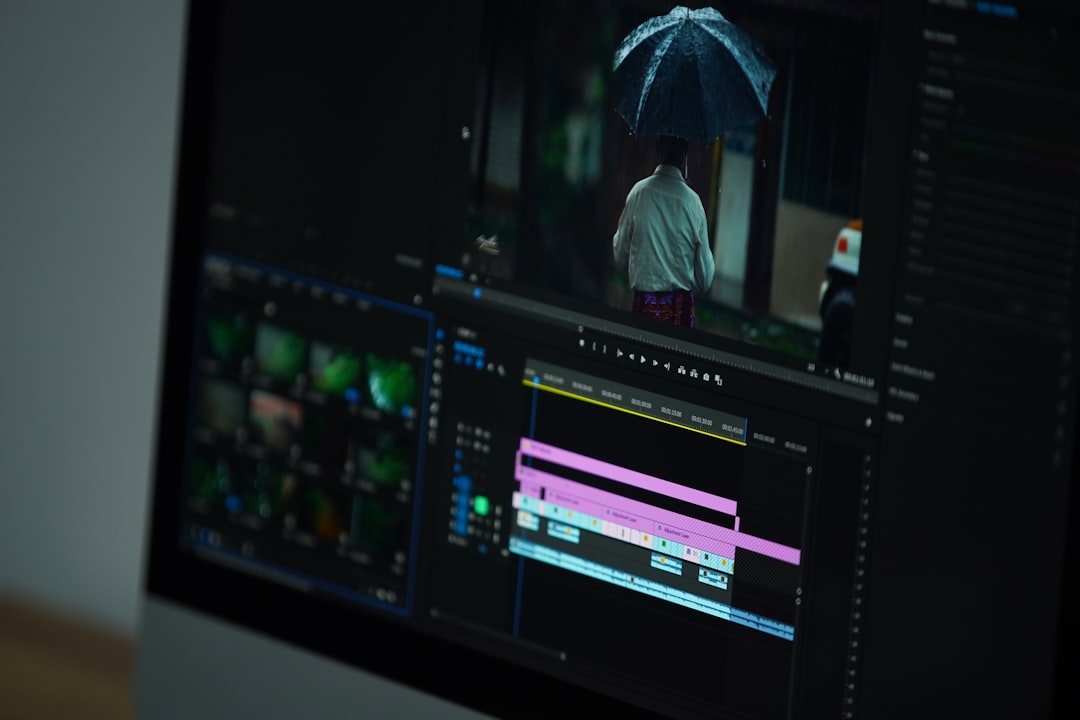
Adobe Premiere Pro just got smarter. Much smarter. With the power of Adobe Firefly AI built right in, video editing feels faster, easier, and more creative than ever. You do less clicking. You spend less time on boring tasks. And you get more time to tell your story.
TLDR: Adobe Premiere Pro now includes powerful AI tools powered by Firefly. These tools help you edit faster, extend clips, generate visuals, and improve audio with simple clicks. You don’t need advanced skills to use them. Just basic editing knowledge and a creative idea.
Let’s break down 4 amazing AI features in Premiere Pro that use Firefly. And let’s explain them in plain English.
1. Generative Extend – Make Clips Longer Instantly
Ever had a clip that was just a little too short?
Maybe someone stopped talking too soon. Or your camera cut off too early. Normally, this is a big problem. Now? Not anymore.
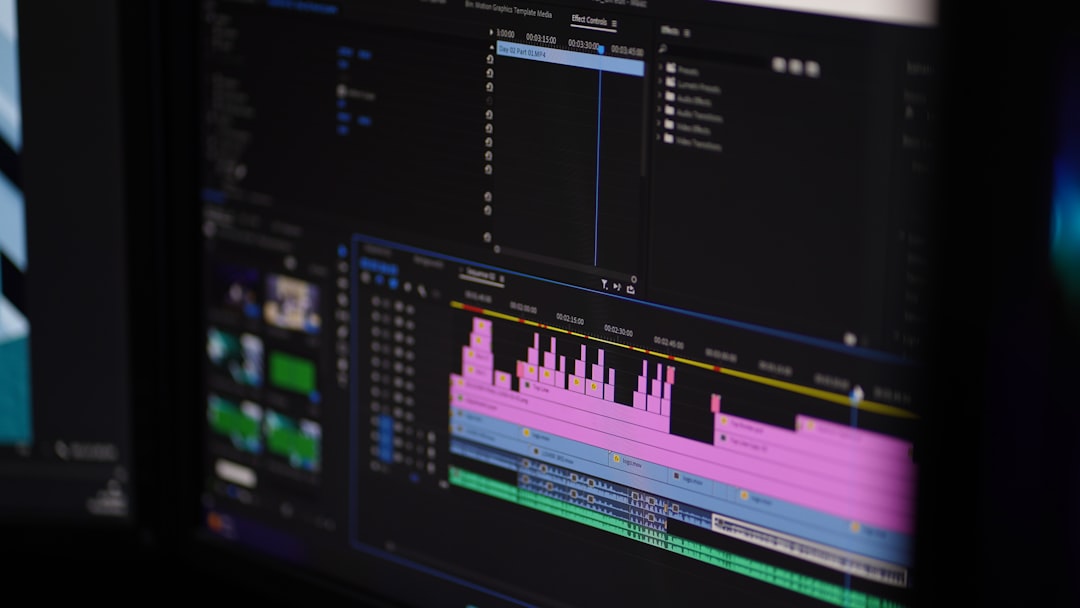
Generative Extend uses Firefly AI to add extra frames at the beginning or end of your clip. It analyzes motion and fills in missing parts naturally.
How It Works
- Select the edge of a clip in your timeline.
- Click and drag to extend it.
- Premiere uses AI to generate new frames.
- The movement continues smoothly.
Yes. It actually creates new video frames. That’s wild.
When to Use It
- You need more breathing room in a scene.
- A dialogue cut feels too fast.
- Your transition needs extra time.
- Your music beat doesn’t match the cut.
This tool saves reshoots. It saves retakes. And it saves stress.
Pro Tip: Use it subtly. It works best with natural motion like walking, talking, or slow camera movement.
2. Text-Based Editing – Edit Video Like a Word Document
This one feels like magic.
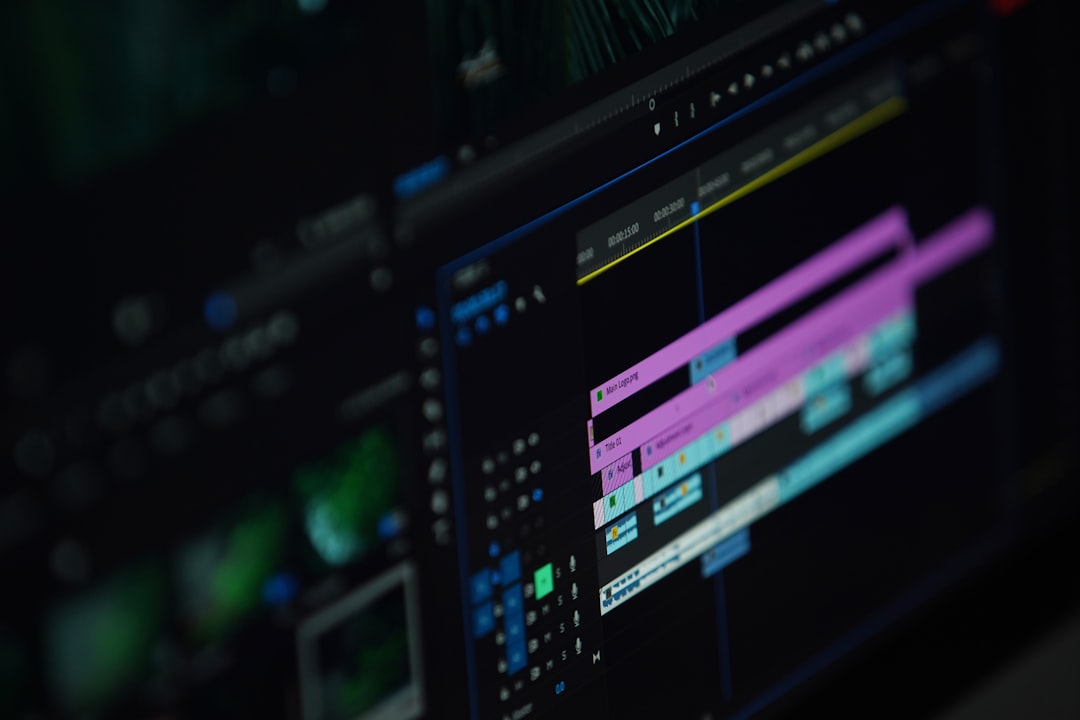
Text-Based Editing turns your video’s speech into text. Then you can edit the video by editing the text.
Delete a sentence in the transcript? The video cuts automatically.
Yes. Really.
How to Use It
- Import your footage.
- Click Transcribe Sequence.
- Premiere creates a full transcript.
- Highlight text and hit delete.
- The video cuts instantly.
No more scrubbing through hours of footage.
Why This Is Powerful
- Fast rough cuts.
- Perfect for interviews.
- Easy podcast editing.
- Cleaner dialogue flow.
Firefly helps make speech recognition highly accurate. Even with different accents.
It’s like editing in Google Docs. But for film.
Extra Tip: After cutting text, use auto captions to polish your final video. It keeps everything clean and accessible.
3. Generative Fill for Video – Add or Remove Objects
You know Photoshop’s Generative Fill?
Now imagine that. But for video.
With Firefly integration, you can remove unwanted objects. Or add new ones. Directly inside Premiere Pro.
Goodbye background photobombers.
Goodbye random trash cans.

What You Can Do
- Remove distractions.
- Add background elements.
- Extend environments.
- Clean up messy shots.
How It Works
- Mask the object you want to remove.
- Choose Generative Fill.
- Let Firefly analyze the scene.
- The object disappears naturally.
The AI studies lighting. Motion. Texture. Perspective.
And then blends everything together.
This used to require advanced VFX tools like After Effects. Now it’s simple.
When It Works Best:
- Static or slow-moving shots.
- Clear separation between subject and background.
- Good lighting conditions.
It’s not magic. But it feels close.
4. Enhance Speech – Studio-Quality Audio in One Click
Bad audio ruins good video.
Echo. Wind noise. Background chatter. We’ve all been there.
Enhance Speech uses AI to clean dialogue automatically.
No complex equalizers. No technical audio skills required.
How To Use It
- Select your audio clip.
- Open the Essential Sound panel.
- Tag it as Dialogue.
- Enable Enhance Speech.
That’s it.
The AI removes noise and boosts voice clarity.
What It Fixes
- Room echo.
- Low microphone quality.
- Buzzing sounds.
- Uneven volume.
It makes your voice sound like it was recorded in a studio.
This is perfect for:
- YouTubers.
- Course creators.
- Interview editors.
- Marketing videos.
Shortcut: Combine this with auto captions for professional results in minutes.
Quick Comparison Chart
| Feature | Best For | Skill Level | Time Saved |
|---|---|---|---|
| Generative Extend | Fixing short clips | Beginner | High |
| Text-Based Editing | Interview editing | Beginner | Very High |
| Generative Fill | Object removal | Intermediate | Medium to High |
| Enhance Speech | Audio cleanup | Beginner | High |
Why Firefly Integration Matters
Before this, you needed:
- Multiple Adobe apps.
- Plugins.
- Third-party AI tools.
- Advanced technical skills.
Now it’s all inside Premiere Pro.
Firefly makes these tools smarter because it’s trained on licensed and Adobe Stock content. That means safer commercial use.
It also improves over time. The AI keeps learning.
Editors can now focus on creativity.
Not technical headaches.
How These Tools Change Your Workflow
Let’s imagine editing a YouTube interview.
- Import footage.
- Use Text-Based Editing for rough cut.
- Fix awkward pauses with Generative Extend.
- Remove background distractions with Generative Fill.
- Clean audio using Enhance Speech.
- Add captions.
- Export.
That process used to take hours.
Now? Much faster.
You’re not replacing creativity.
You’re removing friction.
Final Thoughts
AI in video editing is no longer the future.
It’s here.
Adobe Premiere Pro with Firefly integration makes powerful tools feel simple.
You don’t need to be a Hollywood editor.
You just need an idea.
These four features alone can transform how you edit:
- Generative Extend saves broken shots.
- Text-Based Editing speeds up storytelling.
- Generative Fill fixes visual mistakes.
- Enhance Speech repairs messy audio.
And the best part?
They are built directly into the software many creators already use.
If you haven’t tried them yet, open Premiere Pro.
Experiment.
Drag. Click. Delete. Extend.
Let AI handle the heavy lifting.
You focus on creating something awesome.