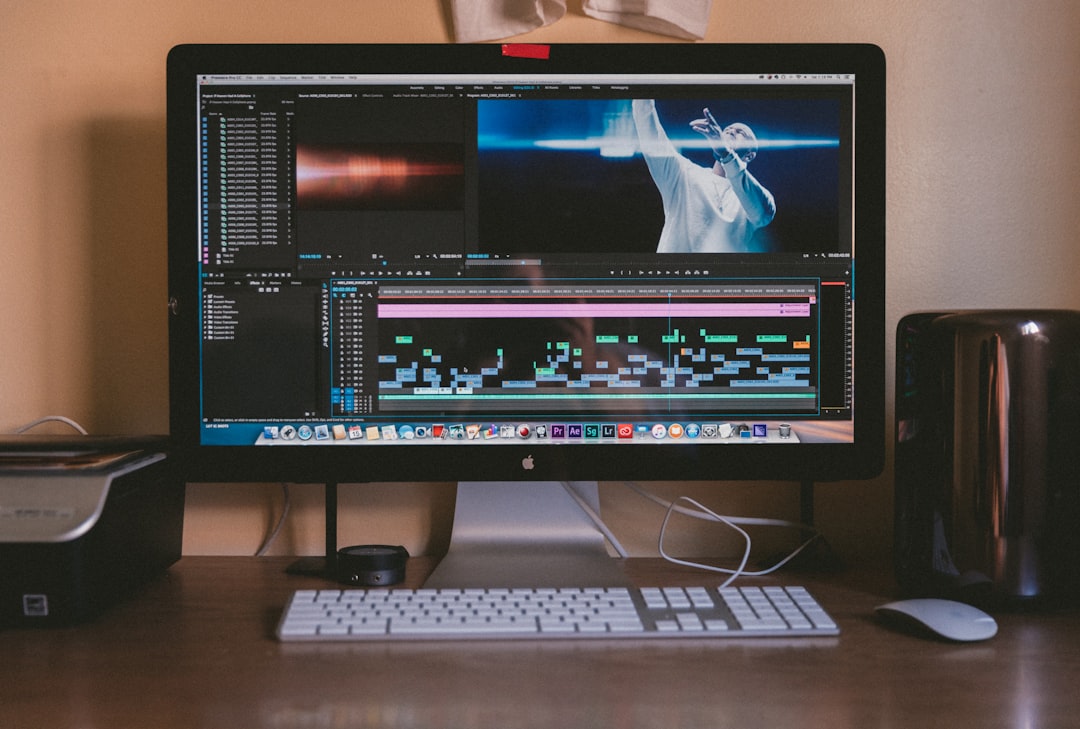
When it comes to professional video editing, Adobe offers two industry-leading tools that often dominate the conversation: After Effects and Premiere Pro. But if you’re stepping into the world of video production or evaluating tools for your specific workflow, the question arises—which one is better for video editing?
TL;DR: Premiere Pro is better suited for traditional video editing tasks such as cutting, arranging scenes, and managing audio. It’s a full-featured non-linear editing system (NLE). After Effects, on the other hand, excels in motion graphics, compositing, and visual effects. In most professional workflows, After Effects is used alongside Premiere Pro rather than as a replacement. So, your choice depends on what kind of editing you want to do.
Understanding the Core Purpose of Each Tool
Before jumping into a comparison, it’s essential to understand what each application was designed to do:
- Premiere Pro: A non-linear video editing software tailored for cutting footage, arranging scenes, adding transitions, and fine-tuning audio. It’s the tool you want for assembling the core of your video.
- After Effects: Focused more on compositing, animation, and motion graphics. If your video includes dynamic intros, green screen removal, particle effects, or 3D text, After Effects is built for that.
Feature Comparison: What Sets Them Apart
While both applications are part of the Adobe Creative Cloud suite and integrate well with each other, they offer distinct features particularly suited to specific tasks.
Premiere Pro: Ideal for Video Editing
- Editing Timeline: Intuitive and fast for editorial workflows involving hours of footage.
- Media Management: Organizes and handles large sets of video, audio, and image files with ease.
- Multicam Editing: Allows for simultaneous edits from multiple camera sources — a boon for interviews and events.
- Audio Tools: Comprehensive tools and plugins for mixing, syncing, and enhancing audio.
After Effects: Best for Visual Creativity
- Motion Graphics: Create animated titles, logo animations, lower thirds, and more.
- Visual Effects: Advanced tools for keying, tracking, compositing, and effects simulation.
- Animation Tools: Rigging, keyframing, and expressions allow for complex animations.
- Dynamic Link: Seamless integration with Premiere Pro for live updating of projects.
In summary, if you’re editing a documentary or vlog, Premiere Pro probably has everything you need. If you’re creating a kinetic typography piece or superhero-style visual effects, After Effects is the better tool.
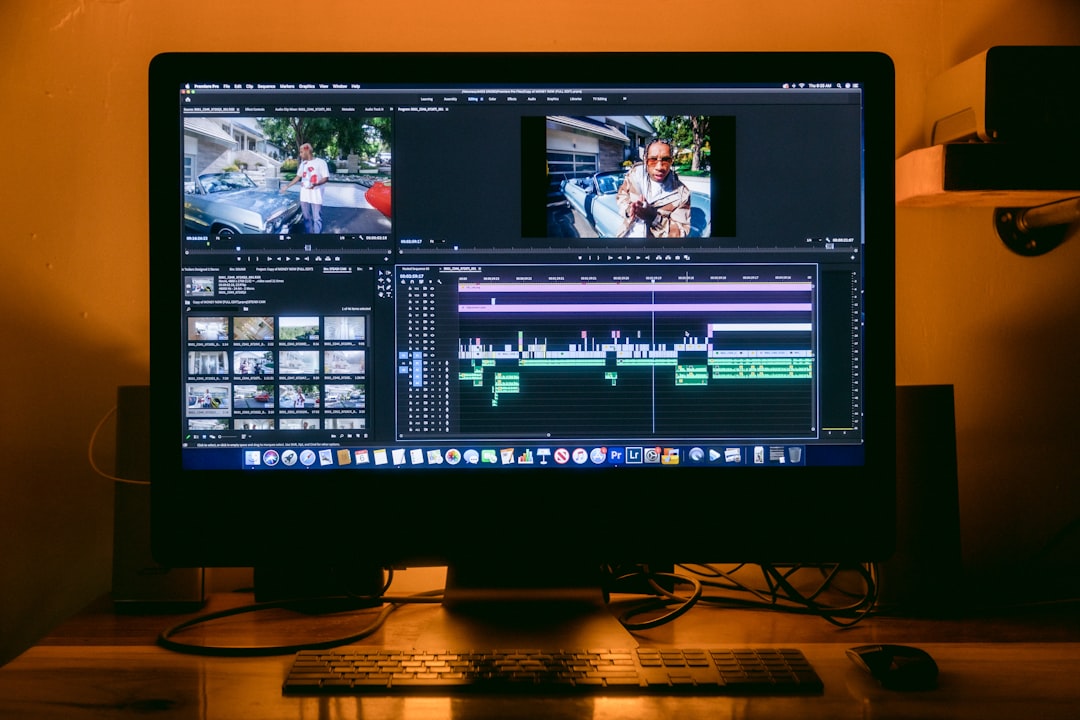
Workflow: Sequential or Collaborative Use
In professional environments, these tools are rarely used in isolation. The typical workflow involves:
- Editing raw footage in Premiere Pro.
- Sending clips or sequences to After Effects using Dynamic Link for motion graphics or effects.
- Rendering the project or returning it to Premiere Pro for final export and sound editing.
This collaborative approach allows editors and motion designers to focus on their strengths without duplicating work or dealing with unnecessary render cycles. Thanks to Adobe Dynamic Link, updates made in After Effects can appear instantly in Premiere Pro, improving efficiency.
User Interface and Learning Curve
Premiere Pro generally has a more straightforward layout for beginners. Its panel-based interface is practical for timeline editing and follows a fairly logical workflow that’s easy to grasp for anyone with basic editing experience.
By contrast, After Effects has a steeper learning curve. Its interface is layered and object-oriented, designed for compositing and motion. Beginners may find it overwhelming at first, especially when dealing with keyframes, expressions, and pre-compositions.
However, note: mastery of both tools can elevate a creator’s ability to produce studio-quality content.
Performance and Hardware Requirements
Both applications are resource-intensive. That said, they draw on system power in different ways:
- Premiere Pro relies heavily on GPU acceleration for time-saving playback and rendering.
- After Effects can benefit significantly from more RAM and CPU power, especially for rendering complex animations or layers.
If you’re frequently working with 4K footage or heavy effects, you’ll want to invest in a solid machine regardless of the software you use. Adobe’s recommendation often includes:
- 16–32 GB of RAM (more for After Effects)
- High-end GPU (NVIDIA GeForce RTX recommended)
- SSD for faster read/write speeds
Exporting and Delivery
While both programs export through Adobe Media Encoder, they serve different ends:
- Premiere Pro: Used for exporting final, polished cuts with synced audio, color grading, and subtitles.
- After Effects: Often used for exporting individual sequences, animations, or effects shots, usually sent back to Premiere Pro for assembly.
If your end goal is a finished video, ready for YouTube or film festival submission, Premiere Pro is the platform where this typically happens.
Community and Resources
Both applications boast massive communities, with thousands of tutorials, forums, and template libraries available. However, the type of content differs:
- Premiere Pro: Rich resources for color grading, editing workflows, vlog editing, and audio synchronization.
- After Effects: Specialized resources focusing on motion design, special effects, and scripting animations.
Online platforms such as YouTube, Skillshare, and Envato are goldmines for both tools but especially useful for After Effects due to its steeper learning curve and creative potential.
Pricing and Accessibility
Both programs are part of Adobe’s Creative Cloud subscription model. While available as standalone apps, most professionals subscribe to at least the “All Apps” plan to enable cross-software workflows.
- Single app pricing: Around $20.99/month for either Premiere Pro or After Effects.
- All Apps Bundle: Around $54.99/month, includes 20+ Adobe apps like Photoshop, Illustrator, and more.
For students and educators, Adobe offers generous discounts that make access more affordable. If you’re on a tight budget, consider starting with Premiere Pro and incorporating After Effects later as needed.
So, Which Should You Choose?
The answer depends on what you’re editing and your role in the production process:
- If you’re an editor working on narratives, documentaries, or YouTube content — go with Premiere Pro.
- If you’re a motion designer or VFX artist — After Effects is your tool.
- If you’re producing polished, graphics-rich content — use both in tandem for the best results.
Professionals don’t usually pick one over the other entirely. Instead, they integrate both into their workflow to capitalize on each software’s unique strengths. Learning both might seem daunting, but it offers the most versatility — and a big step forward in your creative capabilities.
Remember: Video editing isn’t just about cutting clips — it’s about storytelling, enhancing visuals, and holding attention. The right tool or combination of tools can significantly impact the quality and efficiency of your work.