Hulu is one of the leading streaming platforms, widely acclaimed for its vast content library and user-friendly interface. However, users may occasionally encounter error codes that interrupt their viewing experience. One such frustrating issue is the Error Code P-EDU101. If you’ve run into this error, you’re not alone, and thankfully, it’s often possible to resolve it without much trouble.
TL;DR: Hulu Error Code P-EDU101 typically appears when there’s an issue with account authentication or location verification, especially for users trying to access Hulu + Live TV from an unsupported or incorrectly configured location. To fix it, make sure you’re within the supported U.S. regions, using a residential internet connection, and that your Home network settings on Hulu are properly configured. Avoid using VPNs or proxy services, as these often trigger the error.
What Is Hulu Error Code P-EDU101?
Error Code P-EDU101 is a location-based access restriction error that generally affects users of Hulu + Live TV rather than regular Hulu subscribers. It usually pops up when Hulu’s system is unable to verify your current location or determine that you’re streaming from a supported U.S. region. This error can often halt playback entirely and leave users unable to access live broadcasts.
This is not a temporary glitch but rather a deliberate interruption triggered by Hulu’s security and regional compliance systems to prevent unauthorized or non-compliant access to its live TV services.

Common Causes of Hulu Error Code P-EDU101
Understanding the root causes of the error is the first step toward resolving it effectively. Below are the most typical reasons why this error may occur:
- You’re outside of Hulu’s supported region: Hulu + Live TV is only available within the United States. Accessing it from abroad will trigger this error.
- Use of VPNs or proxy servers: Streaming through a Virtual Private Network or proxy can mask your real location, causing Hulu to think you’re outside the allowed region.
- Improperly set “Home” location: Hulu + Live TV requires you to set a Home network, typically your residential Wi-Fi. Frequent changes or mismatches can raise red flags in Hulu’s system.
- Using a mobile network or public Wi-Fi: Hulu relies on stable home internet connections. Using cellular data or Wi-Fi from cafes, hotels, or offices can cause verification issues.
- IP address or DNS issues: Sometimes, your ISP may rotate IPs or use characteristics that confuse Hulu’s geo-verification service.
How to Fix Hulu Error Code P-EDU101
Now that we know what causes the issue, let’s walk through steps to fix it. These solutions can restore proper access to Hulu + Live TV for eligible users.
1. Confirm You’re in a Supported Location
Hulu + Live TV is only available to users residing in the United States. If you’re trying to access the service from Canada, Europe, or anywhere else internationally, you will not be able to bypass this error legally. Hulu blocks access based on physical and IP-derived location data.
2. Disable VPN or Proxy Services
If you’re using any of the following, it’s likely the root of the issue:
- Commercial VPN services like NordVPN, ExpressVPN, etc.
- Browser-based anonymizers or proxies
- Security software that modifies your IP or DNS settings
Solution: Disable or uninstall any VPN or proxy service. Restart your device and router to ensure proper IP is assigned, then try accessing Hulu again.
3. Set or Update Your Hulu Home Location
Hulu requires subscribers to designate a Home network using a residential, non-mobile internet connection. This is what determines your access to local channels and Live TV availability.
To set or update your Home location:
- Use a device connected to your home Wi-Fi network
- Go to your Hulu account page via browser
- Navigate to Privacy and Settings > Set or Change Home
- Click Set Home or Update Home
Note: Hulu allows only up to 4 changes per year for Home location settings. Excessive changes can result in restrictions.
4. Avoid Using Mobile Data or Public Internet
Accessing Hulu Live TV services via a mobile hotspot or public Wi-Fi can cause issues with location verification. These networks either hide or constantly change your IP, confusing the Hulu system and leading to error P-EDU101.
Recommendation: Always connect to a residential broadband network you’ve designated as your Home network with Hulu. That ensures consistent location authentication and uninterrupted service.
5. Restart and Reconnect Your Devices
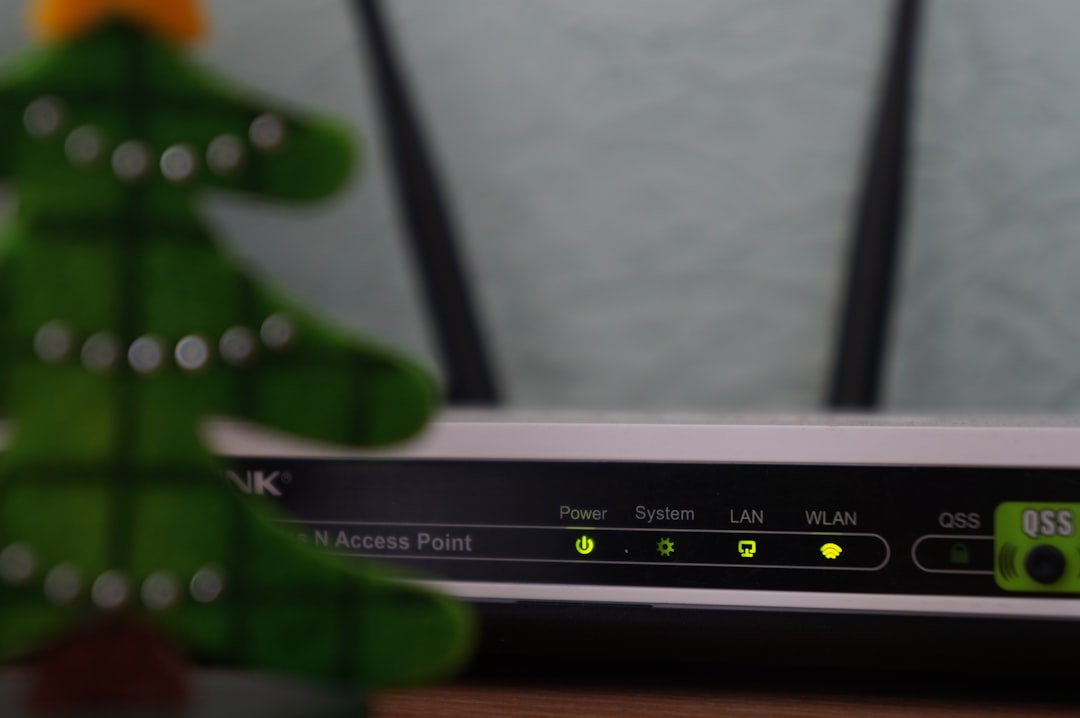
Simple as it sounds, rebooting your streaming device, router, and modem can resolve many temporary network or configuration issues. This can help Hulu detect your accurate IP and location details once again.
Steps:
- Turn off your streaming device (e.g., Smart TV, Roku, Fire Stick)
- Reboot your router and modem
- Wait for 30 seconds before powering devices back on
- Reconnect to your residential Wi-Fi and open Hulu
If the problem persists after restarting, proceed to further technical checks.
6. Check for App or Device Updates
Outdated versions of the Hulu app or streaming device firmware can also interfere with proper functionality and trigger errors.
Make sure you:
- Update to the latest version of the Hulu app via your device’s store
- Install any available firmware updates for your streaming device or Smart TV
After updates, restart the device and reopen Hulu to check whether the error resolves.
7. Contact Hulu Support
If all else fails, it might be necessary to contact Hulu customer support for a more detailed check. They can verify your account settings, device usage patterns, and streaming behavior to identify blocking factors.
You may reach Hulu via:
- Live chat support on the Hulu website
- Social media platforms like Twitter (@hulu_support)
- Phone: Hulu’s support line is available in the U.S.
Be prepared to provide your account email, device model, current location, and any error message screenshots.
Frequently Asked Questions (FAQs)
Can I use Hulu + Live TV while traveling?
You can watch Hulu on mobile devices while traveling domestically, but you’ll need to return to your Home network at least once every 30 days to keep Live TV access. Watching from roaming networks may result in limited features or Error P-EDU101.
Why can’t I reset my Home location anymore?
Hulu allows a maximum of four changes per calendar year per account. If you exceed this limit, you won’t be able to change your Home location until the year resets, which is a measure against account abuse.
Does P-EDU101 apply to on-demand content or just Live TV?
This error mostly affects Live TV streaming. On-demand shows and movies are generally unaffected unless your access is restricted due to region-based licensing or unresolved billing issues.
Conclusion
Hulu Error Code P-EDU101 is a location and access control warning that primarily impacts Hulu + Live TV subscribers. While frustrating, it’s a safeguard designed to comply with regional content licensing and prevent account misuse. By following the correct steps—such as avoiding VPNs, confirming your Home network, and using residential internet—most users can correct the issue promptly.
If the issue continues despite following all the steps mentioned above, reaching out to Hulu’s support is the best course of action. They can assist in resolving any backend misconfigurations tied to your account.