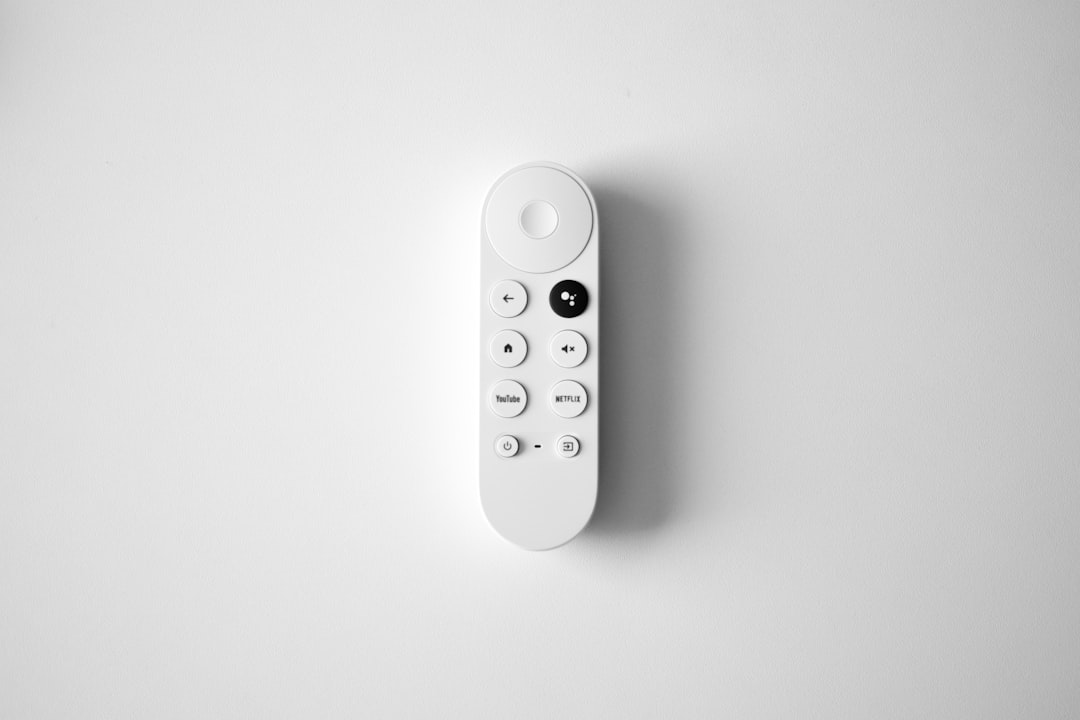
Streaming content from a computer to a television has become one of the most convenient ways to enjoy movies, presentations, music, and even web browsing on a bigger screen. Google Chromecast makes this process simple and affordable, allowing users to mirror or cast content directly from a PC to a TV. For beginners, setting up Chromecast with a PC may seem technical at first, but with the right guidance, the process is straightforward and quick.
TLDR: Setting up Chromecast for a PC involves plugging the device into a TV, connecting it to WiFi via the Google Home app, and using the Google Chrome browser to cast content. Both Windows and macOS users can mirror tabs, desktops, or specific files. A stable WiFi connection and updated Chrome browser ensure the best performance. Once configured, casting becomes as simple as clicking the cast icon.
What Is Chromecast and How Does It Work?
Chromecast is a small streaming device developed by Google that plugs into a TV’s HDMI port. It connects to the same WiFi network as the user’s computer, allowing content to be streamed wirelessly. Instead of physically connecting a PC to a TV with an HDMI cable, Chromecast uses a wireless connection to mirror or cast media.
When casting from a PC, the Google Chrome browser serves as the primary tool. Users can cast:
- Browser tabs (perfect for streaming websites)
- The entire desktop (ideal for presentations or demos)
- Specific media files from the computer
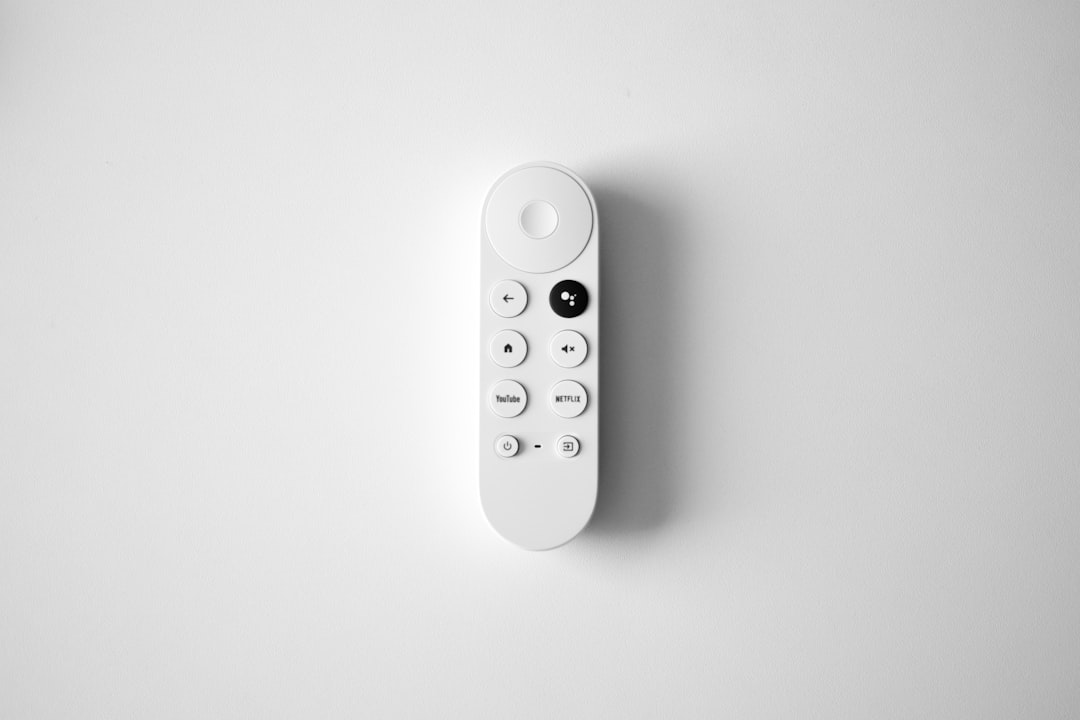
What You Need Before Getting Started
Before setting up Chromecast for a PC, beginners should ensure they have:
- A Chromecast device
- A TV with an HDMI port
- A stable WiFi connection
- A PC (Windows or macOS)
- The latest version of the Google Chrome browser
- A smartphone (for initial setup using Google Home app)
Although casting happens from the PC, the initial configuration requires the Google Home app on a mobile device.
Step 1: Plug In and Power Up Chromecast
- Insert the Chromecast into the TV’s HDMI port.
- Connect the USB power cable to the Chromecast.
- Plug the other end into a power outlet or the TV’s USB port (if supported).
- Turn on the TV and switch to the corresponding HDMI input.
Once connected, the TV screen will display Chromecast setup instructions.
Step 2: Set Up Chromecast Using Google Home
The next step involves configuring the device on the WiFi network.
- Download and open the Google Home app on a smartphone.
- Sign in with a Google account.
- Tap Add Device and select New Device.
- Choose the home location and allow the app to search for nearby devices.
- Select the detected Chromecast.
- Confirm the code displayed on the TV matches the one in the app.
- Connect Chromecast to the same WiFi network as the PC.
Once completed, the Chromecast is officially connected to the network and ready to receive content from the PC.
Step 3: Install or Update Google Chrome on the PC
To cast from a PC, Google Chrome is required. If Chrome is not installed:
- Visit the official Google Chrome website.
- Download and install the browser.
If Chrome is already installed, users should ensure it is updated:
- Click the three-dot menu in the top-right corner.
- Go to Help → About Google Chrome.
- Allow updates to install automatically.
An updated browser ensures compatibility and smoother streaming.
Step 4: Cast a Chrome Tab from PC
Casting a browser tab is the most common and easiest method.
- Open Google Chrome on the PC.
- Click the three-dot menu in the upper-right corner.
- Select Cast.
- Choose the Chromecast device from the list.
- Select Cast tab from the Sources dropdown.
The selected tab will immediately appear on the TV screen.
This method works best for:
- YouTube videos
- Netflix (browser version)
- Online presentations
- Web-based tools
Step 5: Cast the Entire Desktop
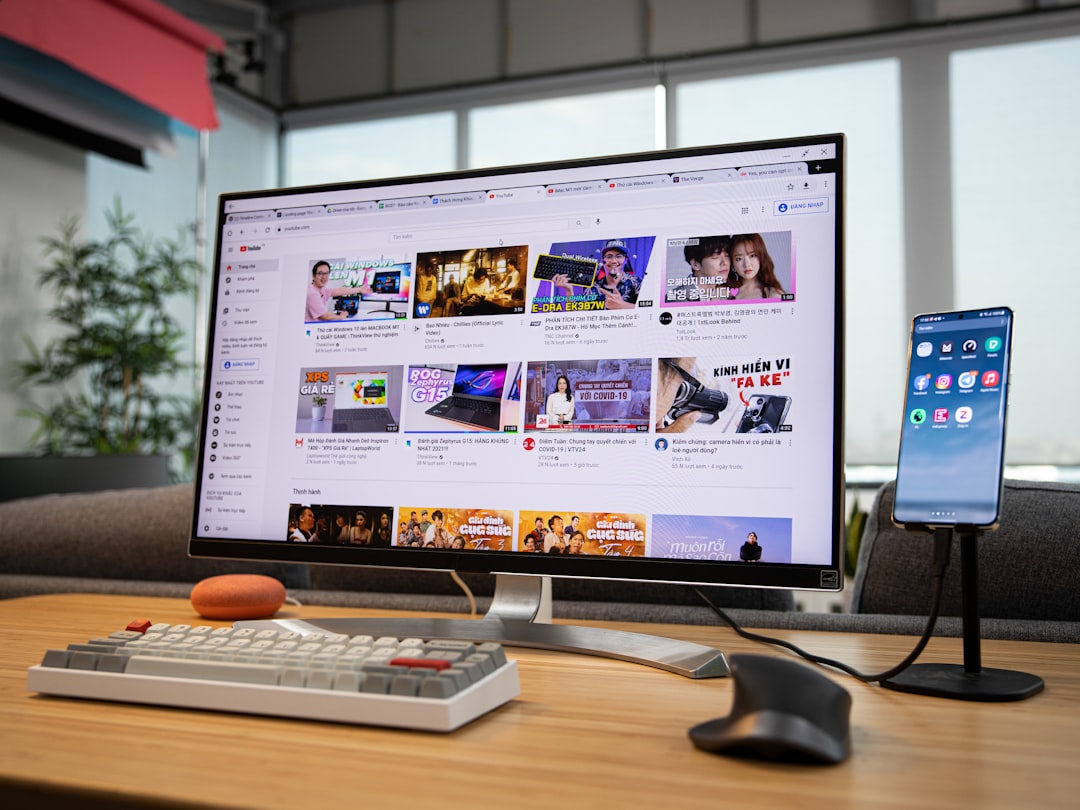
For presentations, video calls, or software demonstrations, casting the entire desktop is ideal.
- Click the three-dot menu in Chrome.
- Select Cast.
- Click Sources.
- Choose Cast desktop.
- Select the screen to share (if multiple monitors exist).
- Click Share.
This option mirrors everything visible on the PC screen, including applications outside the browser.
Step 6: Cast a Local Video File from PC
Chromecast also allows streaming local media files stored on the computer.
- Open Google Chrome.
- Press Ctrl + O (Windows) or Command + O (Mac).
- Select the video file from the computer.
- After the video opens in Chrome, click the three-dot menu.
- Select Cast and choose the Chromecast device.
The video will now play on the TV screen.
Comparison of Casting Methods on PC
| Method | Best For | Ease of Use | Performance |
|---|---|---|---|
| Cast Tab | Streaming websites | Very Easy | High quality |
| Cast Desktop | Presentations, apps | Easy | Moderate (depends on PC) |
| Cast File | Local videos | Easy | High quality |
Troubleshooting Common Chromecast Issues
Beginners may occasionally experience connection problems. Below are common issues and their solutions:
1. Chromecast Not Showing Up
- Ensure the PC and Chromecast are on the same WiFi network.
- Restart the router.
- Restart the PC and Chromecast device.
2. Lag or Buffering During Streaming
- Check WiFi speed and strength.
- Move the router closer to the TV.
- Reduce other network activity.
3. No Sound on TV
- Check TV volume settings.
- Confirm the correct output source on TV.
- Restart casting session.
Tips for Better Streaming Quality
To maximize Chromecast performance, users should:
- Use a 5 GHz WiFi network if available.
- Keep the PC updated.
- Close unnecessary background programs.
- Place the Chromecast within good WiFi range.
A strong network connection significantly improves casting quality and reduces interruptions.
Is Chromecast Compatible with All PCs?
Chromecast works with:
- Windows 10 and Windows 11
- macOS systems
- ChromeOS devices
As long as Google Chrome runs smoothly, casting is supported. No additional hardware upgrades are typically required.
Frequently Asked Questions (FAQ)
1. Can Chromecast work without WiFi?
No. Chromecast requires a WiFi connection to communicate with the PC. Both devices must be on the same network.
2. Is Chromecast compatible with Windows 11?
Yes. Chromecast works perfectly with Windows 11 through the Google Chrome browser.
3. Does Chromecast mirror the entire PC screen?
Yes. By selecting Cast desktop, users can mirror their full screen, including apps and files outside Chrome.
4. Why is Chromecast not appearing in Chrome?
Most commonly, this happens when the PC and Chromecast are connected to different WiFi networks. Restarting devices and checking network settings usually resolves the issue.
5. Can Chromecast stream 4K from a PC?
Only if using a Chromecast Ultra or Chromecast with Google TV that supports 4K, along with a 4K-compatible TV and strong internet connection.
6. Do users need a smartphone every time to cast?
No. A smartphone is only needed for the initial setup. After configuration, casting can be done directly from the PC.
7. Is there a monthly fee for Chromecast?
No. Chromecast itself has no monthly fee. However, subscription services like Netflix or Disney+ still require payment.
By following these simple steps, beginners can quickly transform their regular television into a smart streaming hub. Chromecast offers a cost-effective and user-friendly way to mirror or stream content from a PC, making it ideal for entertainment, work, and presentations alike.