So, you’ve got a Google Pixel phone and you keep hearing about eSIM. No tiny plastic card. No fiddling with trays. No paperclip required. Sounds cool, right? The good news is that setting up an eSIM on your Pixel is surprisingly easy. Let’s walk through it together, step by step, in plain English.
TL;DR: Setting up an eSIM on a Google Pixel is quick and simple. Make sure your phone supports eSIM, get a QR code or activation details from your carrier, then scan and follow the on-screen steps. You can even use two SIMs at once. It’s modern, flexible, and perfect for travel.
What Is an eSIM Anyway?
An eSIM stands for “embedded SIM.” Instead of inserting a tiny card into your phone, the SIM information is built into the device.
You just download your carrier plan digitally.
That’s it.
No physical swapping. No losing tiny cards. No searching for that metal SIM tool.
It’s especially useful if you:
- Travel internationally
- Want two numbers on one phone
- Switch carriers often
- Hate tiny plastic things
Most newer Google Pixel phones support eSIM. And setup only takes a few minutes.
Which Google Pixel Phones Support eSIM?
Most recent Pixel models support eSIM technology.
These typically include:
- Pixel 3 and Pixel 3 XL
- Pixel 3a and 3a XL
- Pixel 4, 4a, 4 XL
- Pixel 5 and 5a
- Pixel 6, 6a, 6 Pro
- Pixel 7, 7a, 7 Pro
- Pixel 8, 8a, 8 Pro
If you’re unsure, check this quickly:
- Open Settings.
- Tap Network & Internet.
- Tap SIMs.
If you see an option to Add eSIM, you’re good to go.
Before You Start
Let’s make sure everything is ready.
You’ll need:
- A Google Pixel phone that supports eSIM
- A stable Wi-Fi connection
- An eSIM QR code or activation details from your carrier
- Your carrier account login, just in case
Important tip: Make sure your phone is unlocked. If it’s locked to one carrier, you may not be able to use another provider’s eSIM.
How to Set Up an eSIM on Google Pixel
Now the fun part.
Follow these simple steps:
Step 1: Open Settings
Go to your phone’s Settings app.
Tap Network & Internet.
Then tap SIMs.
Step 2: Add a SIM
Tap Add SIM.
Your phone will ask if you want to download a SIM instead.
Tap Yes.
This tells your Pixel you want to set up an eSIM.
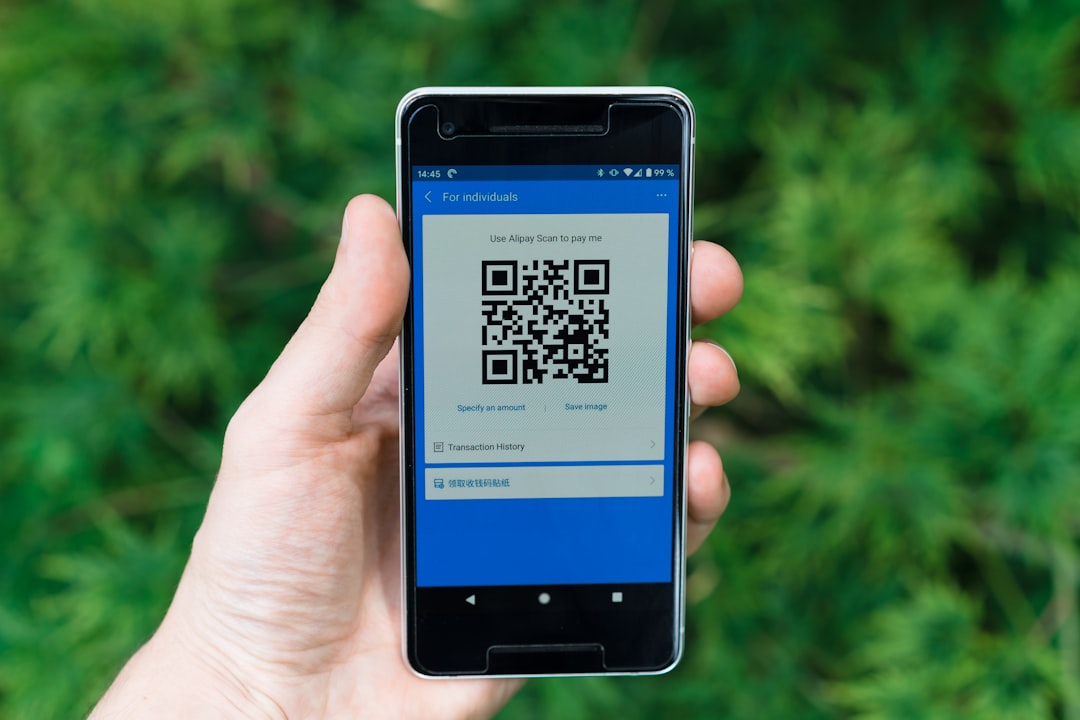
Step 3: Scan the QR Code
Your carrier should provide a QR code.
Use your phone’s camera to scan it.
If you don’t have a QR code, tap Enter it manually and type in the details.
Step 4: Confirm and Activate
Your phone will now download the eSIM profile.
This may take a minute.
Once done, tap Activate.
That’s it. You’re connected.
Congratulations. You just went fully digital.
Using Dual SIM on Pixel
Here’s where it gets interesting.
Most Google Pixel phones allow Dual SIM Dual Standby (DSDS).
This means you can:
- Use one physical SIM
- Plus one eSIM
Two numbers. One phone.
You can choose which SIM handles:
- Calls
- Text messages
- Mobile data
To manage this:
- Go to Settings.
- Select Network & Internet.
- Tap SIMs.
From there, you can label each SIM. For example:
- Work
- Personal
- Travel
It keeps things neat and easy.
Switching Between eSIMs
Yes, you can store multiple eSIM profiles on your Pixel.
But only one or two can be active at a time (depending on model).
Want to switch?
Just:
- Go to Settings.
- Tap Network & Internet.
- Select SIMs.
- Turn off the current SIM.
- Turn on the new one.
No re-scanning required.
Super handy for travelers.
Setting Up an eSIM for Travel
Traveling abroad?
This is where eSIM really shines.
You can buy a local data plan online before you even land.
No airport kiosk. No language barrier. No paying crazy roaming fees.
Here’s how the process usually works:
- Buy an eSIM plan from a global or local provider
- Receive a QR code by email
- Scan and install it before your trip
- Activate it when you arrive

You can even keep your home SIM active for calls while using travel data on your eSIM.
It’s like having a local SIM without swapping anything.
Troubleshooting Common Problems
Sometimes things don’t go perfectly.
Here are quick fixes for common issues:
Problem: QR Code Won’t Scan
- Check your lighting.
- Make sure the code isn’t blurry.
- Enter details manually if needed.
Problem: No Signal After Activation
- Restart your phone.
- Turn Airplane Mode on and off.
- Check if the SIM is enabled in settings.
Problem: Cannot Add eSIM
- Confirm your Pixel model supports eSIM.
- Make sure your phone is carrier unlocked.
- Update your phone software.
To update:
- Go to Settings.
- Tap Security & Privacy.
- Select Updates.
A quick update often fixes activation issues.
How to Remove an eSIM
Need to delete an old plan?
No problem.
Just:
- Go to Settings.
- Tap Network & Internet.
- Select SIMs.
- Choose the eSIM you want to remove.
- Tap Erase SIM.
Done.
Remember: Once deleted, you may need a new QR code to reinstall it.
Is eSIM Safe?
Yes.
Actually, it’s often more secure than a physical SIM.
Why?
- It can’t be physically removed if your phone is stolen.
- Remote management is possible.
- Profiles are encrypted.
Your carrier still controls activation.
You still need verification.
So security stays tight.
Benefits of Using eSIM on Pixel
Let’s recap why this matters.
- No physical SIM card
- Quick carrier switching
- Perfect for travel
- Dual number support
- Cleaner phone design
It’s modern mobile freedom.
And Pixel phones handle it beautifully.
Final Thoughts
Setting up an eSIM on your Google Pixel isn’t complicated.
It feels futuristic at first.
But it’s really just a few taps in your settings menu.
No tools. No tiny trays. No frustration.
Once you try it, you may never want to go back to physical SIM cards.
Whether you’re managing work and personal numbers, preparing for international travel, or just embracing new tech, eSIM on Pixel makes life easier.
Simple. Fast. Digital.
And now you know exactly how to set it up.