Embedded SIM technology, better known as eSIM, is transforming how we connect our smartphones to cellular networks. Instead of inserting a physical SIM card into your Samsung device, you can digitally download and activate a mobile plan in minutes. Whether you’re switching carriers, adding a second line, or preparing for international travel, activating eSIM on a Samsung device is simpler than many users expect. This guide walks you through everything you need to know to set up eSIM smoothly and confidently.
TLDR: Activating eSIM on a Samsung device involves checking compatibility, obtaining an eSIM activation code or QR from your carrier, and scanning it through your phone’s SIM manager settings. Most modern Samsung Galaxy models support eSIM, and setup usually takes just a few minutes. You can also manage multiple lines, switch defaults for calls or data, and remove or add plans anytime through settings. Just ensure your device is carrier-unlocked and connected to Wi-Fi before starting.
What Is eSIM and Why Use It?
An eSIM is a built-in chip inside your phone that stores carrier information digitally. Unlike traditional SIM cards, there’s no small plastic card to insert or swap. Everything happens through software.
Here are some key benefits of eSIM on Samsung devices:
- No physical SIM card required – No more fumbling with trays and ejector tools.
- Dual SIM capability – Use your physical SIM and eSIM together for two numbers.
- Perfect for travel – Instantly add international data plans without removing your home SIM.
- Quick carrier switching – Download a new plan in minutes.
Most recent premium Samsung Galaxy models, including Galaxy S, Galaxy Z Fold, and Galaxy Z Flip series, support eSIM functionality.
Step 1: Check If Your Samsung Device Supports eSIM
Before activating eSIM, confirm compatibility. Not all Samsung phones offer this feature.
To check:
- Open Settings.
- Tap Connections.
- Select SIM manager.
If you see an option such as Add mobile plan, your device supports eSIM.
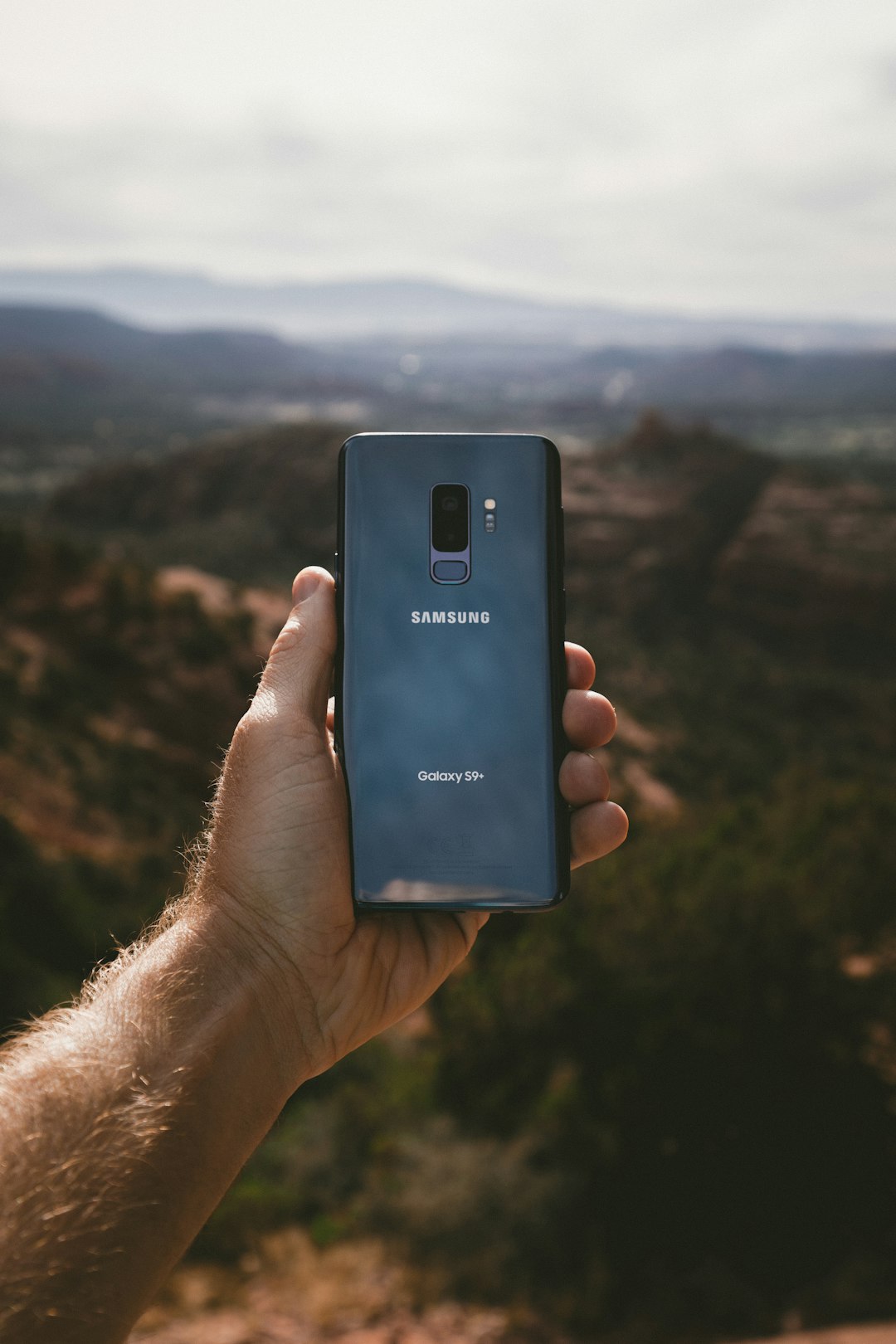
You can also check Samsung’s official specifications page using your exact model number (found under Settings > About phone).
Step 2: Contact Your Carrier
To activate eSIM, you’ll need an eSIM activation profile from your carrier. This typically comes in one of the following forms:
- A QR code
- An activation code entered manually
- Automatic provisioning through your carrier’s app
Important things to confirm with your carrier:
- Your phone is unlocked (if switching carriers)
- Your plan supports eSIM activation
- You have a stable internet or Wi-Fi connection for setup
Most carriers provide the QR code via email, in-store receipt, or within your online account dashboard.
Step 3: Activate eSIM on Your Samsung Device
Once you have your QR code or activation details, follow these steps:
- Open Settings.
- Tap Connections.
- Select SIM manager.
- Tap Add mobile plan.
- Choose Scan carrier QR code.
- Scan the provided QR code.
- Follow on-screen prompts to complete activation.
If you’re manually entering details:
- Select Enter activation code instead of scanning.
- Input the details provided by your carrier.
- Confirm and complete the setup.
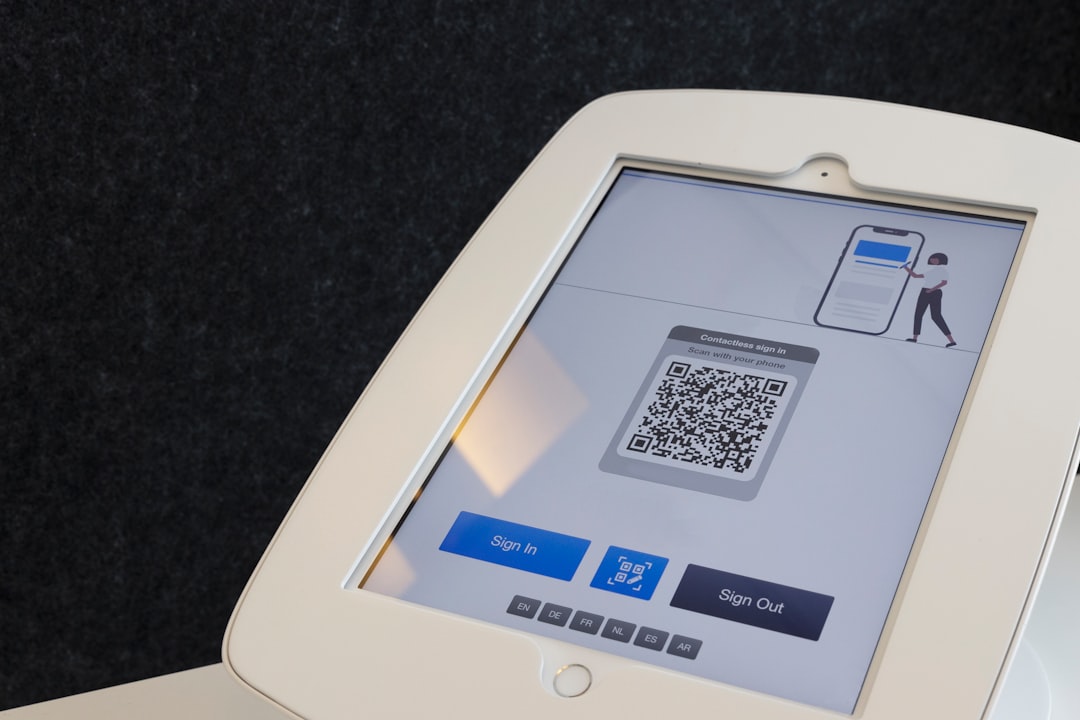
Within a few moments, your Samsung phone will download the eSIM profile and connect to the carrier network.
Step 4: Configure Dual SIM Settings
One of the biggest advantages of Samsung’s eSIM support is dual SIM functionality. You can run:
- One physical SIM + One eSIM
- In some models, multiple eSIM profiles (though only one active at a time)
After activation, go to:
Settings > Connections > SIM manager
From here, you can:
- Choose your default SIM for calls
- Select a SIM for mobile data
- Assign a SIM for text messages
- Rename SIM profiles (e.g., “Work” and “Personal”)
This flexibility is especially helpful for business users or frequent travelers.
Using eSIM for International Travel
Travelers benefit tremendously from eSIM technology. Instead of purchasing and swapping local SIM cards, you can:
- Purchase a local or global data plan online
- Receive a digital activation QR code
- Install it instantly before or after arrival
This means you can keep your home SIM active for calls while using affordable local data through your eSIM.

Many global providers now offer short-term eSIM data packages designed specifically for tourists and business travelers.
Troubleshooting Common eSIM Issues
While activation is usually smooth, occasional problems can occur. Here are common issues and solutions:
1. QR Code Won’t Scan
- Ensure good lighting and stable internet connection.
- Make sure the QR code is not expired.
- Restart your phone and try again.
2. “Plan Cannot Be Added” Error
- Confirm your device is carrier-unlocked.
- Verify with your provider that the eSIM hasn’t been used already.
- Check for software updates under Settings > Software update.
3. No Signal After Installation
- Toggle Airplane mode on and off.
- Restart your phone.
- Manually select network under Mobile networks.
If issues persist, your carrier may need to reissue the eSIM profile.
How to Switch Between eSIM Profiles
Some Samsung models allow storage of multiple eSIM profiles. Although only one can be active at a time, switching is simple:
- Go to Settings.
- Tap Connections.
- Select SIM manager.
- Choose the eSIM you want to activate.
- Tap Turn on.
This is helpful for people who frequently alternate between countries or business accounts.
How to Remove an eSIM
If you’re changing carriers or selling your device, you may want to delete your eSIM profile.
To remove it:
- Open Settings.
- Tap Connections.
- Go to SIM manager.
- Select the eSIM plan.
- Tap Remove.
Make sure you no longer need the plan before deleting, as some carriers require reactivation processes if removed.
Security and Privacy of eSIM
Many users wonder if eSIM is secure. In fact, it can be more secure than a physical SIM card.
Advantages include:
- No SIM card can be physically removed if your phone is stolen.
- Carrier profiles are encrypted and securely provisioned.
- Improved protection against SIM swap fraud (with proper carrier safeguards).
For added protection, always use:
- PIN lock on your device
- Biometric authentication
- Carrier-level security settings
Devices That Commonly Support eSIM
Although availability varies by region and carrier, these Samsung models typically support eSIM:
- Galaxy S20 series and newer
- Galaxy S21, S22, S23, S24 series
- Galaxy Z Fold and Z Flip models
- Select Galaxy Note models (in some regions)
Always confirm compatibility with your specific model and region before requesting activation.
Final Thoughts
Activating an eSIM on a Samsung device is a straightforward process that unlocks impressive flexibility. From managing multiple phone numbers to setting up convenient travel data plans, eSIM represents the next step in mobile connectivity. With just a QR code and a few taps inside your SIM manager settings, you can be up and running in minutes.
As carriers continue expanding eSIM support worldwide, more Samsung users are discovering the convenience of digital SIM technology. Whether you’re simplifying your setup, expanding business capabilities, or preparing for international travel, activating eSIM on your Samsung device is a smart move toward a more streamlined mobile experience.