Your iPad may show “Not Charging” even when it is connected to a cable, adapter, computer, or charging hub. In most cases, the message means the iPad is receiving some power, but not enough to charge the battery properly while the device is awake or in active use. This is usually caused by an underpowered adapter, a weak USB port, a damaged cable, debris in the charging port, overheating, or a software-related charging issue.
TLDR: If your iPad says “Not Charging”, first check whether you are using a proper Apple or certified high-wattage USB-C or Lightning charger. Inspect the cable and charging port for damage, lint, or loose connections, then restart the iPad and try another wall outlet. If the iPad still will not charge with a known-good adapter and cable, the issue may involve the battery, charging port, or internal power hardware and should be inspected by Apple or a qualified technician.
What “Not Charging” Means on an iPad
When an iPad displays “Not Charging”, it does not always mean that no electricity is reaching the device. Often, it means the iPad is connected to a power source that cannot supply enough current for normal charging. The iPad may continue to run, lose battery more slowly, or charge very slowly while the screen is off, but it may not gain battery percentage during active use.
This message is often seen when an iPad is plugged into a computer USB port, a low-powered phone charger, an old power adapter, a damaged cable, or a charging accessory that does not meet the iPad’s power requirements. Modern iPads require more power than many smartphones, especially larger iPad Pro and iPad Air models.
Common Reasons Your iPad Says Not Charging
- The power adapter is too weak: Many phone chargers provide only 5 watts, which may not be enough for an iPad.
- The USB port does not provide enough power: Laptop, desktop, keyboard, monitor, and car USB ports are often underpowered.
- The cable is damaged or uncertified: A frayed, bent, or low-quality cable can interrupt charging.
- The charging port is dirty: Lint, dust, or debris can prevent a secure connection.
- The outlet or power strip is faulty: The problem may be outside the iPad entirely.
- The iPad is too hot or too cold: Charging may be limited for battery safety.
- Software is stuck or misreporting charging status: Restarting or updating can sometimes fix this.
- The battery or charging hardware is failing: Older devices may need service.
Check the Power Adapter First
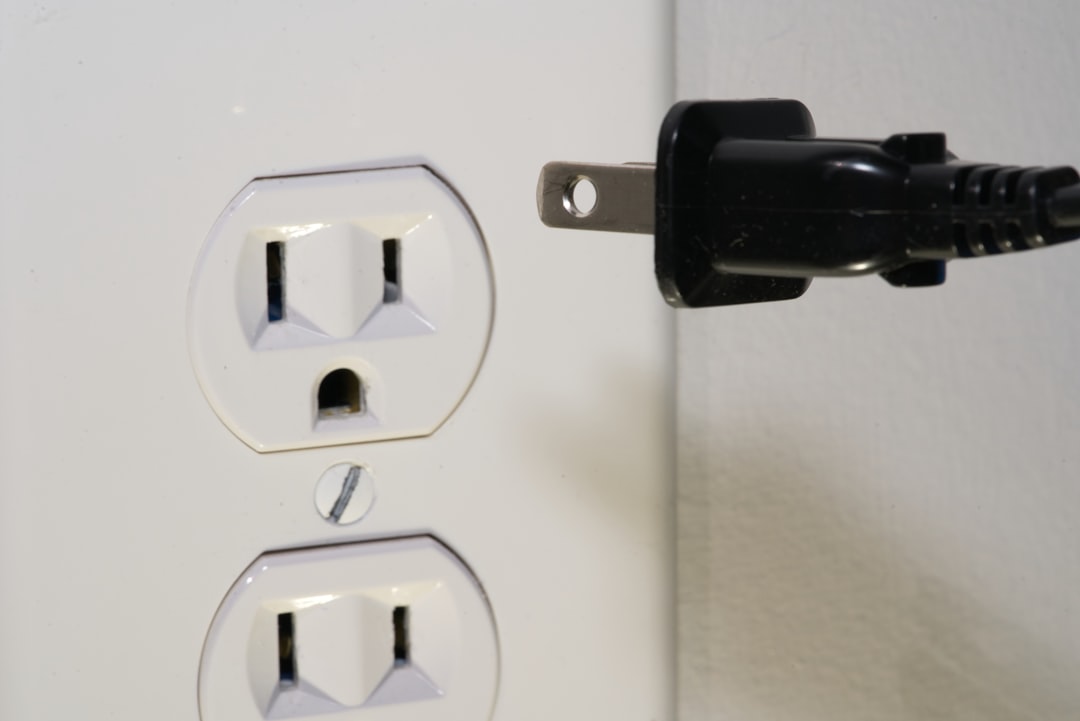
The power adapter is one of the most common causes of the “Not Charging” message. iPads generally need more power than iPhones. If you are using a small cube-style phone charger, especially an older 5W adapter, your iPad may not charge properly.
For many iPad models, a 10W, 12W, 18W, 20W, or higher adapter is more appropriate. USB-C iPads often work best with USB-C Power Delivery adapters, such as Apple’s 20W USB-C power adapter or a reputable third-party USB-C PD charger. Larger iPad Pro models may benefit from even higher-wattage adapters, though they will only draw the amount of power they are designed to accept.
If you are unsure whether the adapter is the issue, try charging the iPad with the original adapter that came with it, if available. If not, use a known-good Apple adapter or a reputable certified charger. Avoid very cheap, unbranded adapters, as they may provide unstable power and can pose safety risks.
Use a Wall Outlet Instead of a Computer USB Port
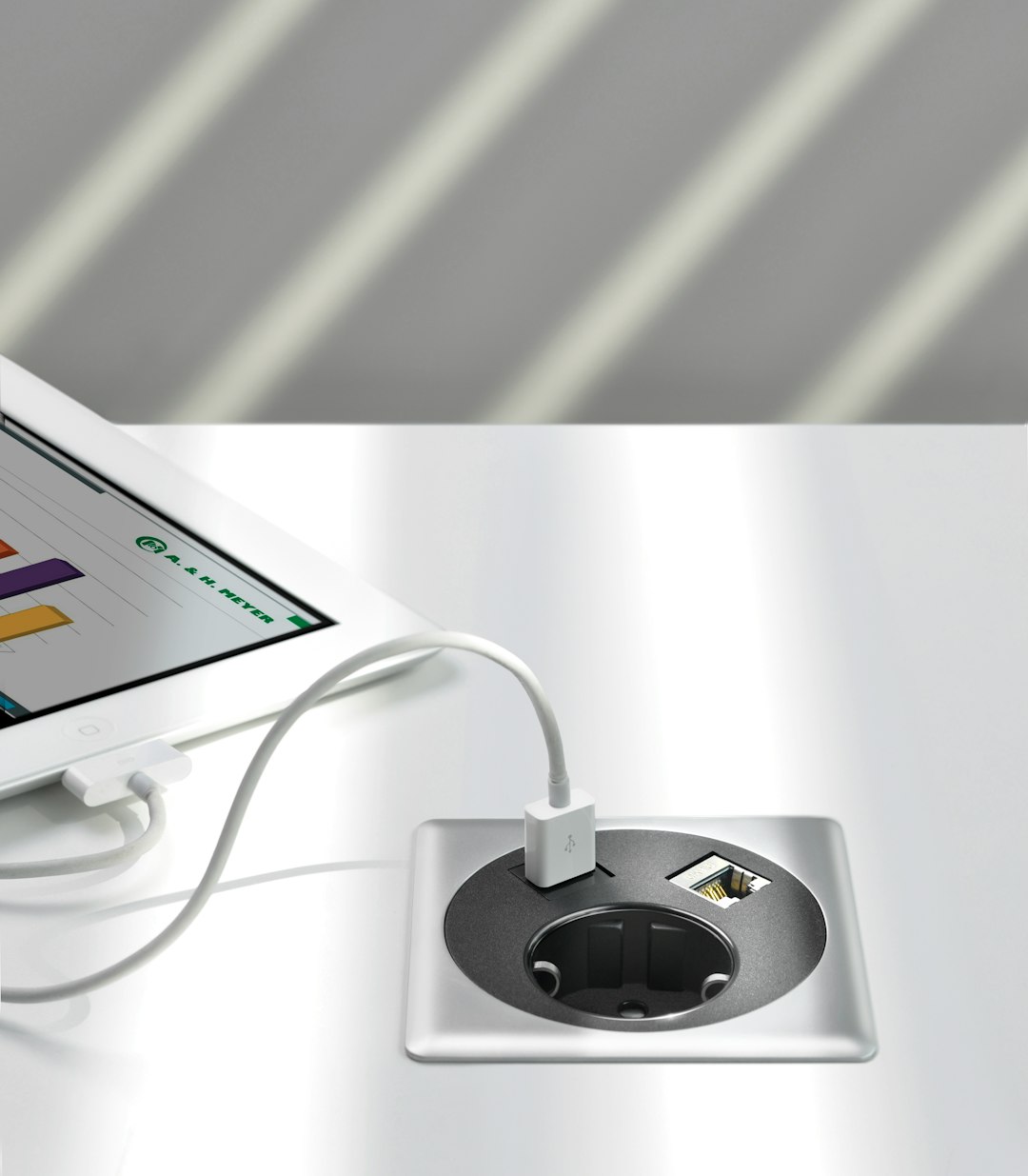
Many people first notice the message when they plug an iPad into a computer. This is expected in many cases. Standard USB ports on laptops and desktops often provide less power than an iPad requires, particularly when the iPad screen is on.
A computer may still allow syncing, file transfer, or very slow charging when the iPad is asleep, but it may not deliver enough current for full charging. The same can happen with USB ports on keyboards, monitors, docking stations, airplane seats, car dashboards, or older power banks.
For the most reliable result, connect the iPad directly to a wall outlet using a suitable adapter and cable. If the charging message changes from “Not Charging” to the normal battery charging icon, the previous power source was underpowered.
Inspect the Charging Cable
A damaged charging cable can cause intermittent charging, slow charging, or no charging at all. Examine the entire cable carefully, especially near both ends where bending is most common. Look for exposed wires, kinks, discoloration, loose connectors, or signs that the cable has been crushed.
For Lightning iPads, use an Apple cable or an MFi certified cable. MFi means “Made for iPhone/iPad,” and it indicates that the accessory is designed to meet Apple’s standards. For USB-C iPads, use a good-quality USB-C cable that supports charging, not just data transfer. Some low-quality USB-C cables are unreliable or may not negotiate power correctly with the adapter.
If possible, test with another cable that you know works with another device. If a different cable solves the problem, replace the faulty one rather than continuing to use it.
Clean the Charging Port Carefully
Dust and lint can build up inside the iPad’s charging port over time, especially if the device is carried in a bag, backpack, or pocket. Even a small amount of debris can prevent the cable from seating fully, causing the iPad to show “Not Charging” or to connect and disconnect repeatedly.
Before cleaning, turn off the iPad. Use a flashlight to inspect the port. If you see lint or debris, remove it carefully with a non-metal tool such as a clean wooden toothpick or a soft anti-static brush. Do not use a paper clip, pin, or metal object, because these can damage the contacts. Do not spray liquid into the port.
If the cable does not click or fit firmly into the port, debris or port damage may be the reason. After cleaning, reconnect the cable and check whether charging improves.
Restart the iPad
Sometimes the iPad’s charging status may not update correctly because of a temporary software issue. A restart can refresh system processes and restore normal charging behavior.
To restart an iPad without a Home button, press and hold the top button and either volume button until the power slider appears. Drag the slider, wait for the device to shut down, then press the top button again to turn it on.
For an iPad with a Home button, press and hold the top button until the power slider appears. Turn it off, wait about 30 seconds, then turn it back on.
After restarting, plug the iPad into a known-good wall charger and see whether the battery icon indicates normal charging.
Check for Temperature Problems
iPads are designed to protect their batteries from extreme temperatures. If the device is too hot or too cold, charging may slow down or pause. You may also see a temperature warning in more severe cases.
If your iPad has been in direct sunlight, inside a hot car, under a pillow, or running demanding apps while plugged in, let it cool down before charging again. Remove thick cases if they trap heat. If the device is very cold, allow it to return to room temperature gradually before connecting it to power.
Do not place the iPad in a refrigerator, freezer, or near a heater to speed up the temperature change. Sudden temperature shifts can create condensation or stress internal components.
Update iPadOS
Software bugs can occasionally affect charging behavior, battery reporting, or power management. Keeping iPadOS updated is a sensible step, especially if the charging problem began after an update, app installation, or system crash.
Go to Settings > General > Software Update. If an update is available, install it while the iPad has sufficient battery or is connected to reliable power. If the iPad’s battery is too low to update, focus first on getting it to charge with a better adapter and cable.
Updating iPadOS will not fix physical damage, but it can resolve some charging-related glitches and improve battery management.
Look for Signs of Battery or Hardware Failure
If your iPad still says “Not Charging” after testing multiple reliable adapters, cables, and outlets, the problem may be internal. Batteries degrade over time, and charging ports can wear out after years of plugging and unplugging. Liquid exposure, drops, and previous repairs can also affect charging hardware.
Warning signs of a deeper problem include:
- The iPad charges only when the cable is held at a certain angle.
- The charging port feels loose or the cable falls out easily.
- The battery percentage jumps up or down unexpectedly.
- The iPad becomes unusually hot while charging.
- The device shuts down even when the battery percentage is not low.
- No charger or cable works, even though they work with other devices.
If you notice these symptoms, avoid forcing the cable into the port or using questionable chargers. Continuing to use damaged charging equipment may make the problem worse.
Try a Safe Charging Test
A simple controlled test can help identify the cause. Use a known-good wall outlet, a reliable iPad-compatible adapter, and a known-good cable. Connect the iPad and leave it unused with the screen off for at least 30 minutes. Then check whether the battery percentage has increased.
If the iPad charges only while asleep, the adapter may still be underpowered. If it does not charge at all, test another cable and adapter. If nothing changes after multiple combinations, the iPad likely needs professional inspection.
When to Contact Apple or a Repair Professional
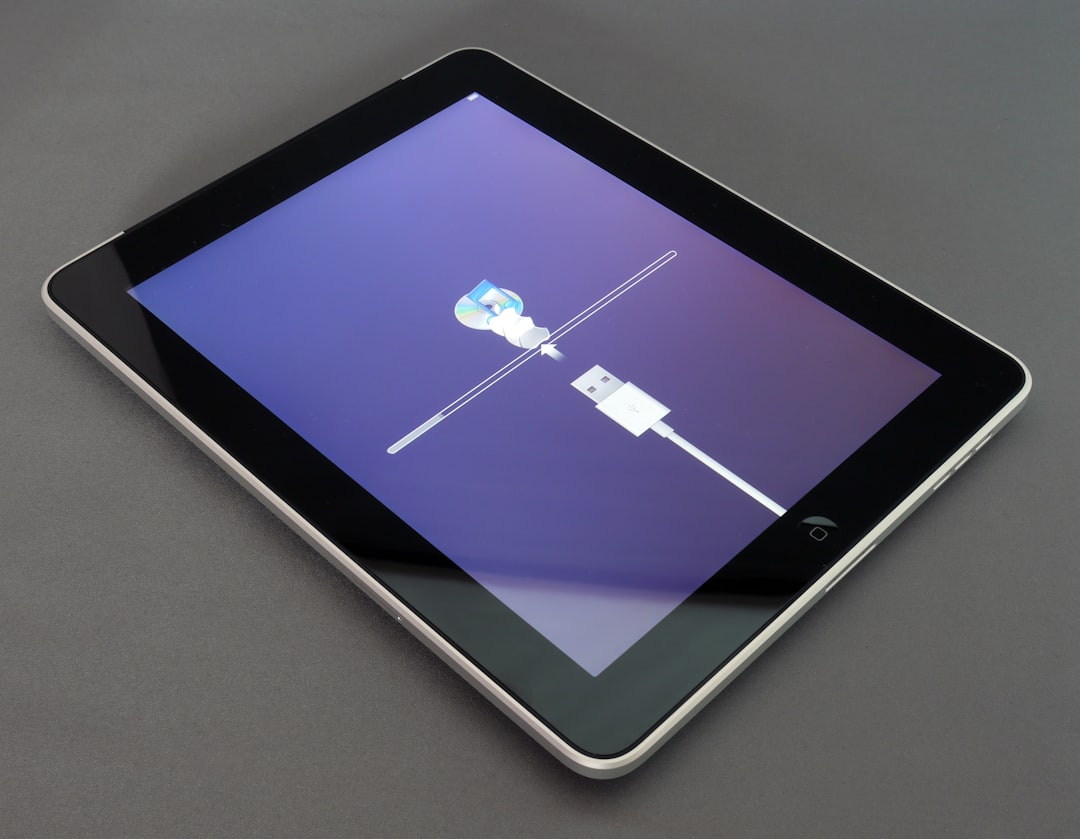
You should contact Apple Support or an authorized service provider if the iPad does not charge with known-good accessories, if the charging port appears damaged, or if the battery drains unusually fast. Professional diagnostics can determine whether the issue is the battery, port, logic board, or another internal component.
If your iPad is under warranty or covered by AppleCare+, service may be less expensive or covered depending on the cause. If the iPad has liquid damage or physical damage, repair options may vary. For safety, battery-related repairs should be handled by qualified technicians rather than attempted at home.
How to Prevent Charging Problems in the Future
- Use the right charger: Choose an Apple or reputable USB-C PD or iPad-compatible adapter.
- Avoid cheap cables: Use certified, good-quality cables that fit securely.
- Keep the port clean: Store the iPad away from lint, dust, and loose debris.
- Do not strain the cable: Avoid bending the connector sharply while charging.
- Protect the device from heat: Do not charge it in direct sunlight or under bedding.
- Update regularly: Install iPadOS updates to maintain stable power management.
Final Thoughts
The “Not Charging” message on an iPad is usually related to power delivery, not necessarily a broken device. In many cases, the fix is as simple as using a stronger wall adapter, replacing a worn cable, cleaning the charging port, or avoiding an underpowered USB port.
If basic troubleshooting does not solve the issue, take the problem seriously. Charging involves both the battery and internal power circuitry, and ignoring repeated charging failures can lead to more serious damage or data loss if the iPad eventually will not power on. Test carefully, use safe accessories, and seek professional help when the iPad fails to charge with equipment you know is reliable.