Losing contacts and messages on your iPhone can feel like losing a part of your memory. From important business numbers to heartfelt conversations, that data often holds both practical and sentimental value. The good news? In most cases, lost contacts and messages on iOS devices are not permanently gone. Thanks to Apple’s ecosystem and a range of recovery tools, there are several reliable ways to get them back.
TLDR: You can recover lost contacts and messages on iOS using iCloud, iTunes or Finder backups, recently deleted folders, or third-party recovery software. The best method depends on whether you have backups enabled and how recently the data was deleted. Acting quickly increases your chances of recovery. Always back up your device regularly to avoid permanent data loss.
Why Contacts and Messages Get Lost
Before diving into recovery methods, it helps to understand why contacts and messages disappear in the first place. Some of the most common reasons include:
- Accidental deletion
- iOS updates or system bugs
- iCloud sync issues
- Factory reset
- Device damage or replacement
In many scenarios, your data still exists in a backup or cloud account—it’s just no longer visible on your device.
1. Check the Recently Deleted Folder (First Stop)
Apple has gradually improved built-in recovery options. For messages and contacts, the Recently Deleted feature may save you from more complicated recovery efforts.
Recover Recently Deleted Messages
If you’re using iOS 16 or later:
- Open the Messages app.
- Tap Edit in the top-left corner.
- Select Show Recently Deleted.
- Choose the messages to restore and tap Recover.
Messages remain in this folder for up to 30–40 days before being permanently deleted.
Recover Deleted Contacts via iCloud
Contacts don’t have a Recently Deleted folder on the device itself, but iCloud keeps archived versions.
- Go to iCloud.com and sign in.
- Click your profile name → Account Settings.
- Under Data Recovery, select Restore Contacts.
- Choose an archive from a date before deletion.
This method restores your entire contacts list to a previous state.
2. Restore from an iCloud Backup
If your contacts or messages are completely gone, restoring from an iCloud backup may be your best option—provided you had backups enabled.
How to Check for an iCloud Backup
- Go to Settings → Tap your name.
- Select iCloud → iCloud Backup.
- Check the date of the last backup.
Steps to Restore from iCloud
- Go to Settings → General → Transfer or Reset iPhone.
- Tap Erase All Content and Settings.
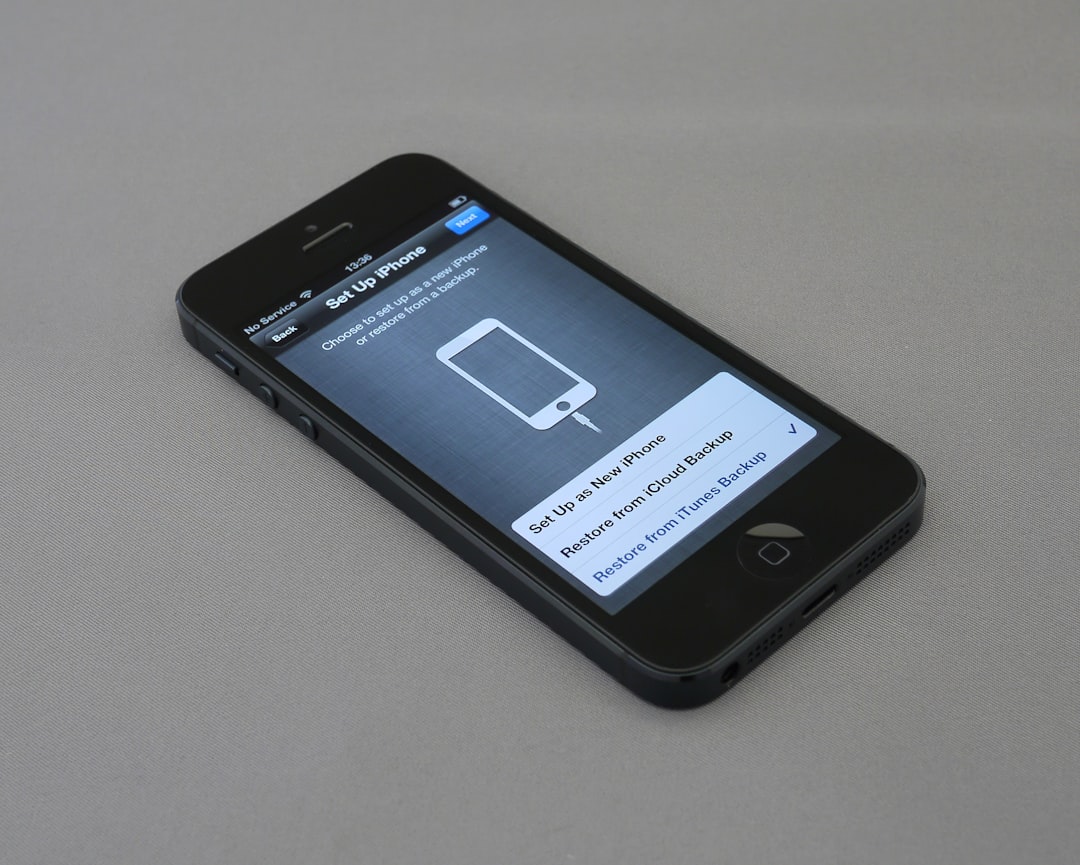
- During setup, choose Restore from iCloud Backup.
- Select the most relevant backup.
Important: This method erases your current data first. Anything not included in the backup will be lost.
Best for: Recovering large amounts of deleted data, including both messages and contacts.
3. Restore from iTunes or Finder Backup
If you’ve backed up your iPhone to a computer, you can recover lost contacts and messages using iTunes (Windows or older macOS) or Finder (macOS Catalina and later).
Steps to Restore from Computer Backup
- Connect your iPhone to your computer.
- Open iTunes or Finder.
- Select your device.
- Click Restore Backup.
- Choose the relevant backup file.
This method works similarly to iCloud restoration—it replaces your current data with data from the selected backup.
Tip: If your backup is encrypted, you’ll need the password you created during backup setup.

4. Use Third-Party iOS Data Recovery Tools
If you don’t have a full backup—or if you want to recover specific contacts or messages without erasing your device—third-party tools may help. These programs can scan your device or backup files to extract recoverable data.
Popular iOS Recovery Tools
- Dr.Fone – Data Recovery (iOS)
- iMobie PhoneRescue
- Tenorshare UltData
- iMyFone D-Back
How They Work
Most tools offer three recovery modes:
- Recover directly from iPhone
- Extract from iTunes backup
- Extract from iCloud backup
After scanning, you can preview recoverable contacts and messages before restoring them.
Comparison Chart
| Tool | Recover Without Backup | Selective Restore | Preview Data | Ease of Use |
|---|---|---|---|---|
| Dr.Fone | Yes | Yes | Yes | Very Easy |
| PhoneRescue | Yes | Yes | Yes | Easy |
| Tenorshare UltData | Yes | Yes | Yes | Very Easy |
| iMyFone D-Back | Yes | Yes | Yes | Easy |
Note: Success rates vary depending on how recently data was deleted and whether it has been overwritten.
5. Recover Contacts from Email Accounts
Many users sync contacts with external accounts such as:
- Gmail
- Outlook
- Yahoo
- Exchange
If your contacts disappeared, the issue may simply be that syncing was turned off.
How to Re-Sync Contacts
- Go to Settings → Contacts → Accounts.
- Select the account.
- Toggle Contacts on.
You can also log into your email provider’s website to check whether your contacts are still stored there.
This is one of the simplest and most overlooked recovery methods.
6. Contact Your Mobile Carrier
In some cases—particularly with SMS rather than iMessages—your mobile carrier may store message logs temporarily. While they rarely provide full message content, they might be able to offer:
- Message timestamps
- Phone numbers
- Call records
This is not a guaranteed solution, but it can help reconstruct important details.
7. Prevent Future Data Loss
Once you’ve recovered your contacts and messages, prevention becomes crucial. iOS makes it easy to automate backups and syncing.
Enable Automatic iCloud Backups
- Go to Settings → Tap your name.
- Select iCloud.
- Tap iCloud Backup.
- Turn on Back Up This iPhone.
Turn On Messages in iCloud
This keeps messages synced across devices and stored safely in the cloud.
- Go to Settings → [Your Name] → iCloud.
- Toggle Messages on.
Use Multiple Backup Methods
For maximum protection:
- Enable iCloud backups.
- Create occasional encrypted computer backups.
- Sync contacts with a reliable email provider.
Redundancy is your best defense against permanent data loss.
Key Factors That Affect Recovery Success
Not all recovery attempts succeed. Here are the main factors that influence your chances:
- Time since deletion: The sooner you act, the better.
- New data usage: Continued device use may overwrite deleted data.
- Backup availability: Regular backups greatly improve success rates.
- Storage encryption: Some tools require encrypted backups for full access.
If your contacts or messages were deleted months ago and you have no backups, recovery becomes far less likely.
Final Thoughts
Losing contacts and messages on iOS can feel overwhelming, but in most cases, recovery is possible. Whether through the Recently Deleted folder, iCloud restoration, computer backups, third-party software, or simple resyncing, Apple provides multiple layers of protection for your data.
The key is acting quickly and knowing which method fits your situation. If you have a recent backup, restoration is straightforward. If not, specialized tools may still retrieve critical information. And once everything is back where it belongs, enabling automatic backups ensures you won’t have to go through the same stress again.
Your data is only truly safe when it’s backed up. Make that your digital rule—and lost contacts and messages will become a minor inconvenience rather than a disaster.