Few things are more frustrating than relying on Google Maps for directions, only to discover that the navigation voice is silent. Whether you are commuting to work, driving in an unfamiliar city, or following walking directions, the lack of audio guidance can quickly turn a smooth journey into a stressful experience. Fortunately, most Google Maps sound issues stem from simple configuration problems that can be resolved in just a few minutes with the right approach.
TLDR: If Google Maps has no sound, start by checking your device’s volume and mute settings. Then verify that voice navigation is enabled inside the Google Maps app and that the correct audio output (Bluetooth or phone speaker) is selected. If the problem persists, update the app, clear the cache, or reinstall Google Maps. Most sound issues are caused by misconfigured settings rather than hardware failure.
Why Google Maps Might Have No Sound
Before diving into specific solutions, it’s helpful to understand why audio guidance may stop working. Google Maps relies on multiple elements functioning together correctly:
- Device volume controls (media volume vs. call volume)
- App-specific sound settings
- Bluetooth or car audio connections
- Operating system permissions
- App updates and cached data
A failure in any one of these areas can interrupt voice navigation. The fixes below are arranged from the simplest to the more advanced troubleshooting steps.
1. Check Your Device Volume and Mute Settings
This may seem obvious, but it is the most common cause of Google Maps sound problems.
Steps to verify:
- Increase your media volume (not call volume).
- Ensure your phone is not in silent or Do Not Disturb mode.
- If using an iPhone, check the physical mute switch.
- Test audio using another app like YouTube or Spotify.
Google Maps voice navigation operates through your device’s media channel. If your media volume is reduced to zero, you will not hear directions even if other alerts are audible.
2. Verify Google Maps Voice Navigation Settings
If your device audio is functioning normally, the next step is checking the settings inside Google Maps itself.
On Android and iPhone:
- Open Google Maps.
- Tap your profile picture in the top-right corner.
- Select Settings.
- Tap Navigation settings.
Now review the following:
- Mute state: Make sure “Muted” is not selected.
- Guidance volume: Set it to “Normal” or “Louder.”
- Play voice over Bluetooth: Enable if connected to a car system.
Many users accidentally mute the app by tapping the speaker icon during navigation. If muted, Google Maps will continue showing directions visually but without voice prompts.
3. Check Bluetooth and Car Audio Connections
If you are driving, your phone may be attempting to route audio to a Bluetooth device that is disconnected or malfunctioning.
Common Bluetooth issues include:
- Phone connected to car Bluetooth but car audio muted
- Connection instability
- Bluetooth pairing errors
- Phone routing audio to wireless headphones
To troubleshoot:
- Turn Bluetooth off temporarily and test navigation again.
- Disconnect and reconnect your car’s audio system.
- Restart both your phone and your vehicle’s infotainment system.
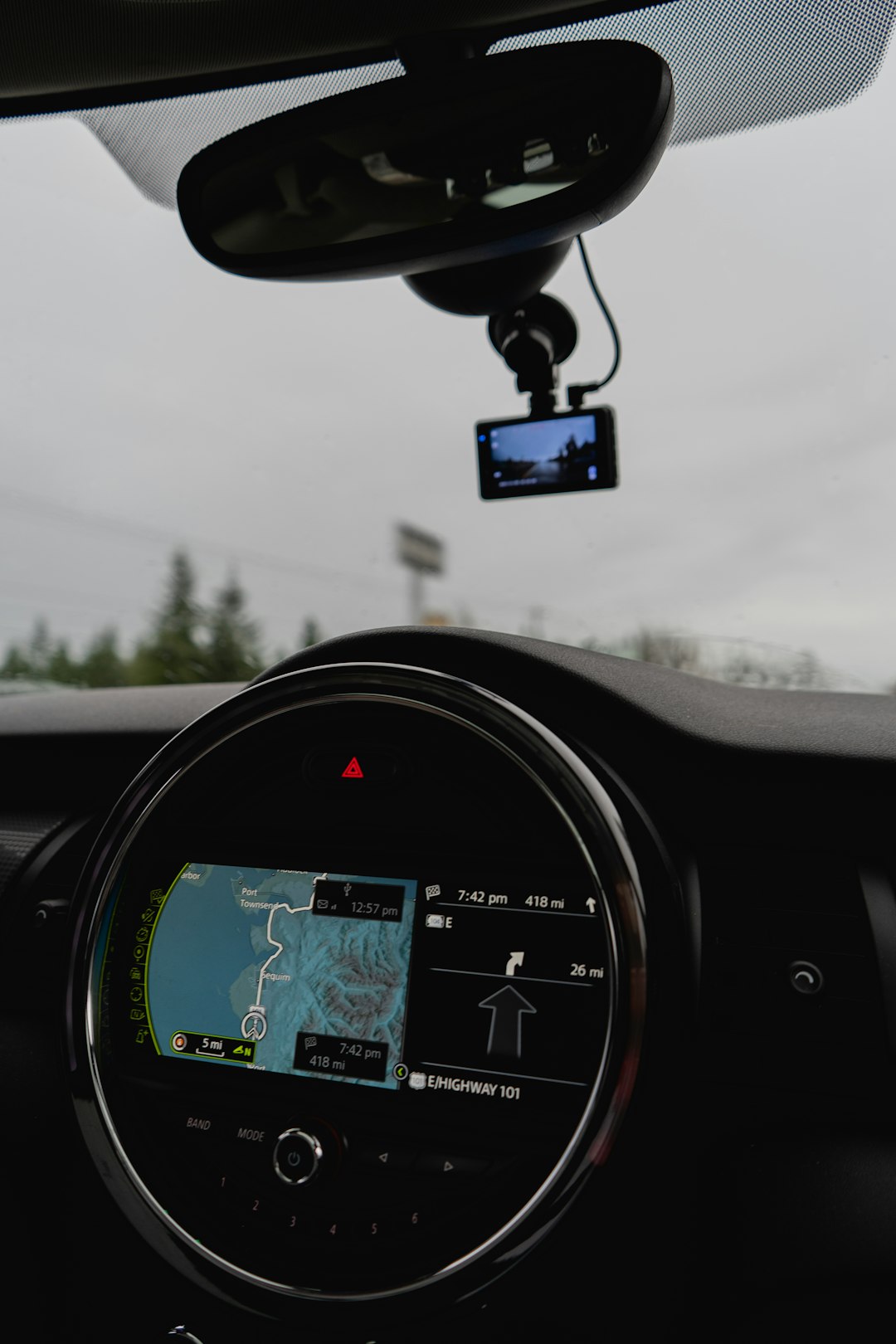
If sound returns after disabling Bluetooth, the problem likely lies with the external audio device rather than Google Maps itself.
4. Ensure App Permissions Are Enabled
Improper permissions can interfere with app functionality, especially after system updates.
On Android:
- Go to Settings > Apps > Google Maps.
- Select Permissions.
- Ensure necessary permissions are enabled.
On iPhone:
- Open Settings.
- Scroll down to Google Maps.
- Confirm permissions are properly configured.
While audio output itself does not require special permission, system-level restrictions can interfere with app performance in unexpected ways.
5. Restart Your Device
A simple restart can resolve temporary software glitches. This clears background processes that may interfere with audio routing or navigation services.
Why restarting works:
- Resets audio drivers
- Refreshes background apps
- Re-establishes Bluetooth connections
- Clears minor memory conflicts
After restarting, open Google Maps and test navigation again.
6. Update Google Maps
Outdated app versions can contain bugs that affect voice navigation.
To update:
- Open the Google Play Store (Android) or App Store (iPhone).
- Search for Google Maps.
- Tap Update if available.
Developers regularly release fixes for performance and compatibility issues. Running the latest version significantly reduces the likelihood of sound-related bugs.
7. Clear Cache (Android Users)
Corrupted cache files can disrupt normal app behavior.
How to clear cache on Android:
- Go to Settings > Apps > Google Maps.
- Select Storage.
- Tap Clear Cache.
This will not delete saved places or account data. It simply removes temporary files that may be causing malfunction.
Note: iPhone users do not have a direct cache-clearing option. Reinstalling the app achieves a similar result.
8. Reinstall Google Maps
If all else fails, uninstalling and reinstalling the app can resolve deeper configuration problems.
Steps:
- Remove Google Maps from your device.
- Restart your phone.
- Reinstall from the official app store.
This process ensures that all app files are fresh and up to date.
9. Check Text-to-Speech Settings (Android)
Google Maps relies on your phone’s text-to-speech engine for voice guidance.
To verify:
- Open Settings.
- Go to Language & Input.
- Select Text-to-Speech output.
- Ensure the engine is properly configured.
If the speech engine is disabled or malfunctioning, Maps may fail to generate spoken instructions.
10. Consider Operating System Updates
Compatibility between Google Maps and your operating system version is essential. If your device is running an outdated system, certain features may stop functioning correctly.
Check for updates under:
- Android: Settings > System > Software Update
- iPhone: Settings > General > Software Update
Installing system updates often resolves hidden audio conflicts.
When the Issue May Be Hardware-Related
If Google Maps and other apps produce no sound, the issue may involve:
- Damaged speakers
- Faulty headphone jack
- Bluetooth hardware problems
- Internal audio driver failure
Test your device by playing audio through multiple apps and external speakers. If no audio works consistently, professional technical support may be required.
Preventing Future Google Maps Sound Problems
To minimize the chances of recurrence:
- Keep Google Maps updated
- Avoid force-closing the app during navigation
- Regularly restart your device
- Maintain stable Bluetooth connections
- Install system updates promptly
Proactive maintenance significantly reduces app instability.
Final Thoughts
A silent Google Maps experience can be disruptive, especially in unfamiliar areas where visual navigation alone is insufficient. However, in the vast majority of cases, the problem is caused by minor configuration oversights rather than technical failure. By systematically checking volume controls, in-app settings, Bluetooth connections, and app updates, you can restore voice guidance quickly and reliably.
If you follow the steps outlined in this guide, you should be able to diagnose and resolve nearly all Google Maps sound issues. A methodical approach ensures that you avoid unnecessary frustration and return to smooth, dependable navigation as quickly as possible.