
Customizing your NZXT mouse on a Mac can feel tricky at first. But don’t worry. It’s easier than it sounds. With a few simple steps, you can fine-tune buttons, adjust DPI, and make your mouse truly yours.
TL;DR: You can customize your NZXT mouse on Mac by installing the right software, adjusting DPI settings, remapping buttons, and setting up lighting profiles. Some features may require workarounds since NZXT’s CAM software is primarily built for Windows. With third-party tools and smart setup tips, you can unlock most features. Follow this guide and you’ll be fully set up in no time.
First Things First: Check Compatibility
Before diving in, make sure your NZXT mouse model supports customization features. Popular NZXT mice like the Lift are designed mainly with Windows in mind. That means Mac users may need a few extra steps.
Here’s what to check:
- Your macOS version
- Your NZXT mouse model
- Whether NZXT CAM supports your device
- If you’re okay using third-party software
This quick check saves time later.
Step 1: Connect Your NZXT Mouse
Start simple.
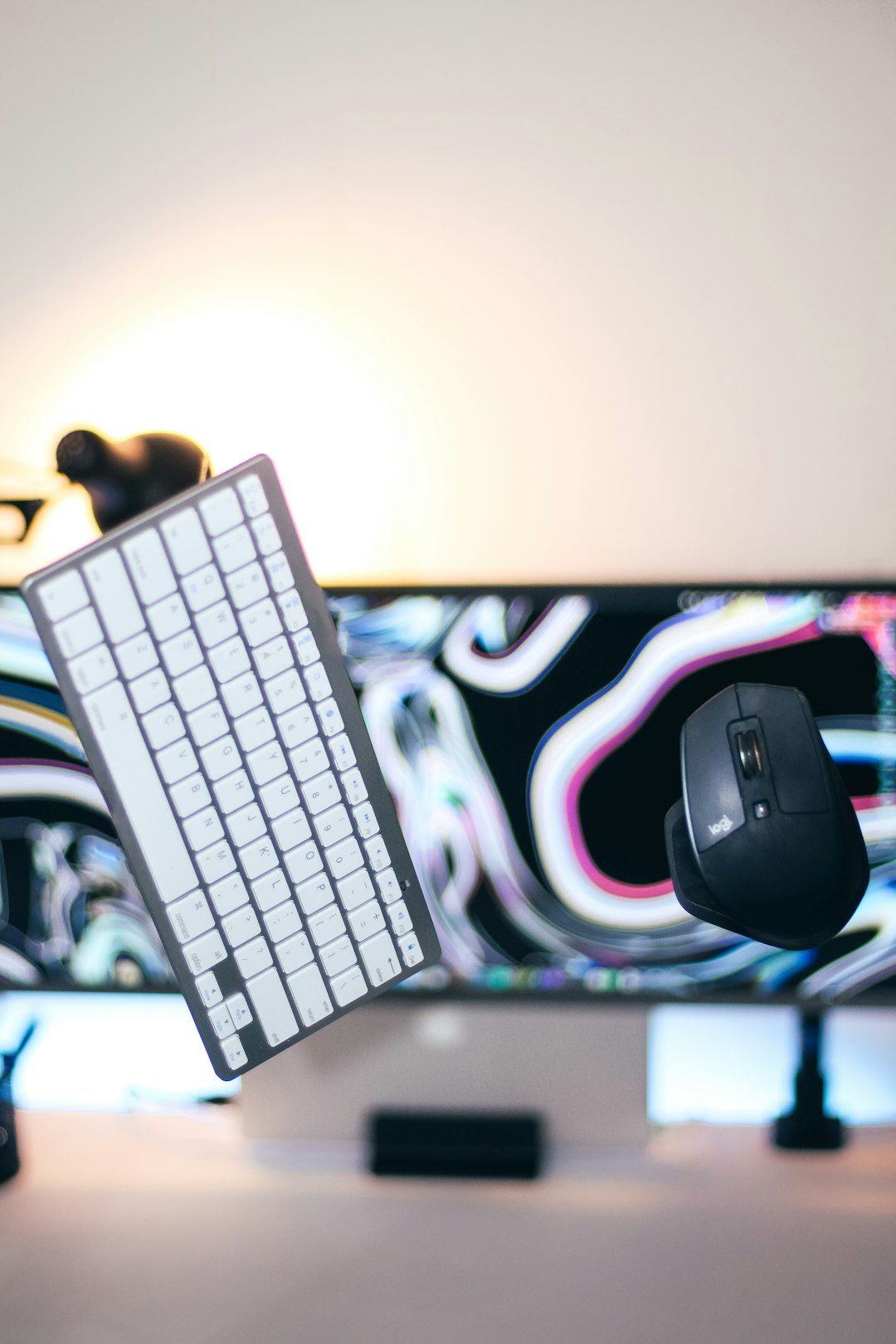
Plug your NZXT mouse into your Mac using USB. If it’s wireless, connect the dongle or use Bluetooth if supported.
Your Mac should detect it automatically. You can confirm by going to:
Apple Menu > System Settings > Mouse
Move the mouse around. If the cursor moves, you’re good to go.
Step 2: Install NZXT CAM (If Possible)
Here’s the important part.
NZXT CAM software is primarily designed for Windows. That means there is no full native macOS version in most cases.
So what are your options?
- Use a Windows PC temporarily to configure the mouse
- Install Windows on your Mac using Boot Camp (Intel Macs only)
- Run Windows through virtualization software
Why does this matter?
Because many NZXT mice store settings onboard. That means once you configure it on Windows, the settings stay saved even when you plug it back into your Mac.
Quick Comparison: Setup Options for Mac Users
| Method | Difficulty | Best For | Notes |
|---|---|---|---|
| Borrow Windows PC | Easy | Quick setup | Fastest method |
| Boot Camp | Medium | Intel Mac users | Requires partitioning |
| Virtual Machine | Medium | M1 M2 M3 users | Needs virtualization software |
If you just want simple DPI tweaks and button remapping once, borrowing a Windows PC is usually the easiest option.
Step 3: Adjust DPI Settings
DPI stands for dots per inch. It controls how sensitive your mouse is.
Higher DPI = faster cursor movement.
Lower DPI = more precise control.
Most NZXT gaming mice allow multiple DPI levels. You can switch between them using the DPI button on the mouse.
To customize DPI:
- Open NZXT CAM on Windows
- Select your mouse
- Find the DPI settings panel
- Adjust sensitivity levels
- Save to onboard memory
Popular DPI ranges include:
- 400–800 for precise editing
- 800–1600 for general use
- 1600+ for fast gaming
Once saved, plug your mouse back into your Mac. The new DPI settings should remain active.
Step 4: Remap Mouse Buttons
This is where customization gets fun.
Many NZXT mice feature programmable side buttons. Perfect for:
- Video editing shortcuts
- Copy and paste actions
- Mission Control on Mac
- Gaming macros
Option 1: Use NZXT CAM (Windows Required)
Inside CAM, you can assign:
- Keyboard keys
- Macro commands
- Media controls
- DPI shift actions
After saving to onboard memory, the button remaps work on macOS.
Option 2: Use macOS Third-Party Apps
If you prefer staying fully on Mac, try third-party tools like:
- SteerMouse
- USB Overdrive
- BetterTouchTool
Quick Comparison: Mac Customization Tools
| Tool | Ease of Use | Button Remapping | Macros |
|---|---|---|---|
| SteerMouse | Easy | Yes | Basic |
| USB Overdrive | Medium | Yes | Limited |
| BetterTouchTool | Advanced | Yes | Advanced |
For most users, SteerMouse is simple and effective.
Install the app. Grant permissions in:
System Settings > Privacy & Security > Accessibility
Then assign your side buttons however you like.
Step 5: Customize RGB Lighting
If your NZXT mouse has RGB, you can tweak colors and effects using CAM.
Lighting options often include:
- Static colors
- Breathing effects
- Color cycling
- Reactive clicks
Configure lighting in CAM. Then save to hardware memory.
Note: Some models require CAM running in the background for lighting effects. In that case, full RGB customization may not transfer to macOS.
Step 6: Fine-Tune macOS Mouse Settings
Even without CAM, macOS gives you solid control.
Go to:
Apple Menu > System Settings > Mouse
You can adjust:
- Tracking speed
- Scrolling speed
- Natural scrolling
- Double-click speed
If your cursor feels too fast or too slow, adjust tracking speed here instead of DPI.
Pro tip: Turn off “natural scrolling” if you prefer traditional mouse wheel behavior.
Creating Profiles for Different Tasks
Want one setup for gaming and another for work?
You can.
Using either CAM (onboard memory profiles) or Mac tools like BetterTouchTool, create profiles such as:
- Work Mode – Lower DPI, productivity shortcuts
- Gaming Mode – Higher DPI, macro buttons
- Editing Mode – Precision control, timeline shortcuts
Switch profiles depending on your activity.
It feels like having multiple mice in one.
Troubleshooting Common Issues
Mouse Not Recognized
- Try a different USB port
- Restart your Mac
- Reset Bluetooth connection
Buttons Not Working
- Check Accessibility permissions
- Test in another app
- Reconfigure using CAM
Scrolling Feels Weird
- Adjust macOS scroll direction
- Use third-party customization software
- Lower DPI slightly
Most issues are small hiccups. Easy fixes.
Bonus Tips for the Best Experience
- Use a good mouse pad for accurate tracking
- Keep firmware updated using CAM
- Clean the sensor occasionally
- Match DPI to your screen resolution
If you use a 4K display, you may prefer higher DPI settings.
Is It Worth Customizing on Mac?
Absolutely.
Even with limited native support, NZXT mice perform beautifully on macOS.
You just need the right setup strategy:
- Configure once using Windows
- Save to onboard memory
- Fine-tune on Mac
After that, it’s smooth sailing.
Final Thoughts
Customizing your NZXT mouse on a Mac isn’t complicated. It just requires a little planning.
Start by checking compatibility. Decide whether you’ll use CAM via Windows or third-party Mac tools. Adjust your DPI. Remap buttons. Tweak lighting. Fine-tune macOS settings.
Small changes make a big difference.
Your mouse should match your style. Your workflow. Your games.
Now it can.
And once you’ve customized it exactly how you like, you’ll wonder how you ever used a default setup.