If you’re a regular Hulu viewer, there’s nothing more frustrating than settling in for your favorite show and being met with an unexpected error message. One common issue that many users face is the dreaded Hulu Error Code P-TS207. This error can prevent you from streaming content smoothly and might pop up frequently if not dealt with properly. But don’t worry — in this guide, we’ll walk you through what causes the issue and how you can resolve it step by step.
TL;DR (Too Long; Didn’t Read)
Hulu Error Code P-TS207 typically indicates a playback issue, often caused by internet connection problems, outdated apps, or temporary glitches in Hulu’s servers. To fix it, try restarting your device, updating the Hulu app, checking your internet connection, and clearing cached data. In most cases, the issue is easy to resolve with basic troubleshooting steps. For persistent problems, contacting Hulu support might be necessary.
What is Hulu Error Code P-TS207?
This code usually signals a playback-related error on the Hulu platform. It suggests that your device is having trouble playing the content due to a disruption in the streaming process. The error may occur on various devices including smart TVs, streaming devices like Roku or Fire Stick, gaming consoles, or mobile phones. While it appears frustrating, the root causes are usually simple and easy to fix.
Common Causes of Error Code P-TS207
Before diving into the solutions, it’s helpful to understand what might be behind this error:
- Network issues: Slow or unstable internet connections are the most common culprits.
- Outdated Hulu app: An older version of the Hulu app might not interact properly with Hulu’s servers.
- Corrupted data or cache: Your device’s storage of temporary Hulu files can sometimes interfere with playback.
- Device incompatibility: Your streaming device might need a software update or be experiencing compatibility issues.
- Server-side issues: Occasionally, the problem could be on Hulu’s end, especially if many users are affected.
Step-by-Step Guide to Fix Hulu Error Code P-TS207
1. Restart Your Streaming Device
Sometimes, the simplest fix is also the most effective.
- Turn off your streaming device completely.
- Unplug it and wait for about 30 seconds.
- Plug it back in and power it on.
- Reopen Hulu and check if the issue still persists.
This process can clear minor glitches in the device’s memory that might be affecting performance.
2. Check Your Internet Connection
Streaming requires a stable and fast internet connection. Hulu recommends at least 3 Mbps for standard content and up to 16 Mbps for 4K streaming.
- Run a speed test on another device to check current download speed.
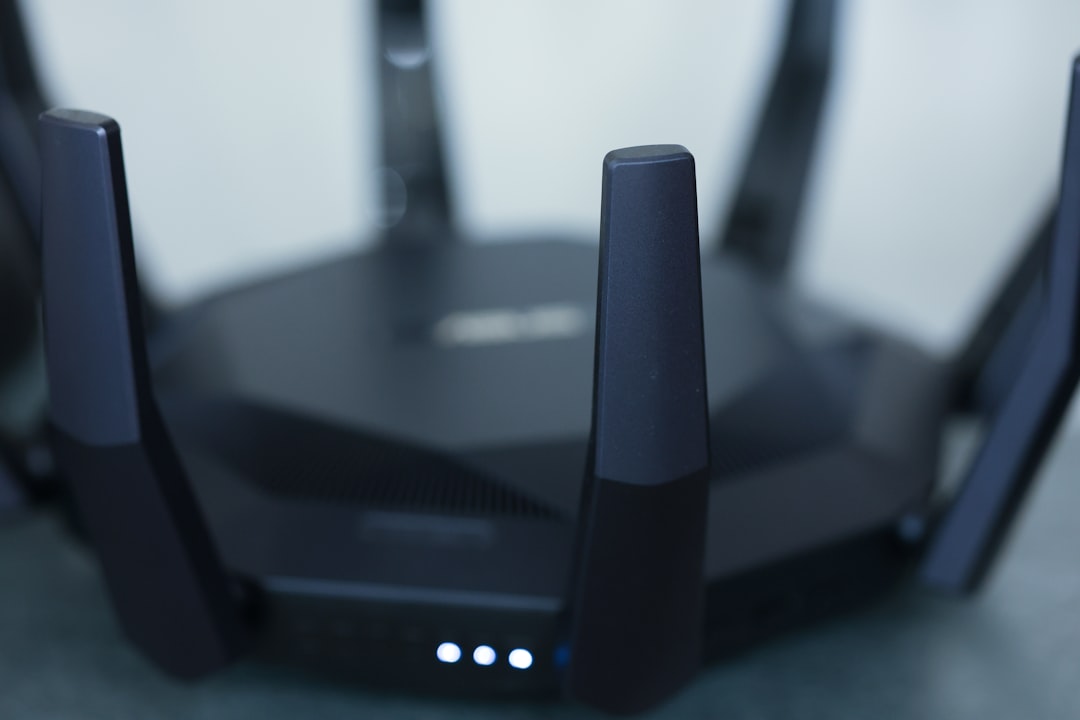
- If speeds are low, try restarting your modem/router.
- Switch from Wi-Fi to a wired connection if possible for more stability.
- Buy a Wi-Fi booster if your device is far from the router.
If your internet is performing well but the error continues, move on to app-related fixes.
3. Update the Hulu App
Running an outdated app can cause compatibility issues with Hulu’s servers. To ensure you’re running the latest version:
- Go to the app store (Google Play, Apple App Store, Roku Store, etc.) on your device.
- Search for Hulu and check for updates.
- Install any available updates.
- Reopen the app and test playback.
Also, consider checking for software updates for your streaming device itself, as older system software could also cause problems.
4. Clear App Cache and Data
Over time, the Hulu app stores temporary files that can become corrupted. Clearing the cache helps to eliminate these problematic files.
- On Android devices: Go to Settings > Apps > Hulu > Storage > Clear Cache.
- On Fire TV: Navigate to Settings > Applications > Manage Installed Applications > Hulu, then select Clear Cache and Clear Data.
- On other devices: Uninstalling and reinstalling the app can effectively clear cached data.
After clearing the cache or reinstalling, re-login and try streaming again.
5. Try a Different Device
If Hulu works fine on a different device using the same network, the problem may be isolated to your original device. This can help narrow down whether you’re dealing with a hardware or app-specific issue.
- Try accessing Hulu on a smartphone, tablet, or computer.
- If it works, go back to your original device and check for firmware updates.
6. Disable VPN or Proxy Services
Hulu restricts content based on geographic locations. If you’re using a VPN or proxy server, Hulu may block playback completely and display errors like P-TS207.
- Turn off VPN or proxy settings.
- Restart your app or device after disabling the virtual location tool.
Reopen the Hulu app to see if the streaming works without a virtual connection in place.
7. Check Hulu Server Status
Sometimes, the issue isn’t with you at all. Hulu’s servers may be down temporarily for maintenance or due to outages.
- Visit websites like Downdetector to see if others are reporting similar issues.
- Check Hulu’s official social media for announcements.

If Hulu is experiencing a widespread outage, all you can do is wait until their team resolves the issue.
8. Contact Hulu Support
If none of the above steps work, it’s time to reach out to Hulu customer support.
- Go to help.hulu.com
- Choose the option to start a live chat or request a callback.
- Make sure to provide details about your error code and steps already tried.
Hulu’s support team can provide individualized help, and may be aware of backend issues or device-specific fixes not yet documented.
Preventive Tips to Avoid Future Errors
Now that you’ve resolved the issue, here are a few tips to keep P-TS207 — and other errors — at bay:
- Keep your Hulu app updated regularly through your app store.
- Ensure your internet connection is stable and ideally high-speed.
- Restart your streaming device occasionally to keep things running smoothly.
- Clear cache/cache files every few weeks for optimal app functioning.
Final Thoughts
Error Code P-TS207 might seem like a serious problem on the surface, but in most cases, it’s quite manageable with the right troubleshooting steps. From ensuring a stable internet setup to clearing application cache, there are several simple solutions that usually work. With patience and a bit of tech-savviness, you can get back to binge-watching your favorite Hulu series in no time. Happy streaming!