Restricted Mode on YouTube is designed to filter out potentially mature videos, comments, and search results, but it can become frustrating when it blocks harmless educational, music, gaming, or news content. In 2026, YouTube’s settings are more connected across accounts, devices, schools, workplaces, family controls, and networks than ever before, which means turning Restricted Mode off is sometimes as simple as flipping a switch—and sometimes not. This guide walks you through every practical way to disable it and explains what to do when the option is locked, missing, or keeps turning itself back on.
TLDR: To turn off Restricted Mode on YouTube, open YouTube, go to your profile menu, find Restricted Mode, and switch it Off. If the toggle is greyed out, your account, browser, device, network, school, employer, or parental control settings may be enforcing it. Try signing in with another account, checking Family Link or supervised settings, switching networks, clearing cache, or contacting the administrator. Restricted Mode is device and browser specific in many cases, so you may need to disable it separately on your phone, computer, TV, and browser.
What Restricted Mode Does on YouTube
Restricted Mode is an optional YouTube filter that helps hide content that may not be suitable for all viewers. It uses automated systems, video metadata, titles, descriptions, user reports, age restrictions, and other signals to decide what should be filtered. When enabled, it may hide videos, disable comments, remove certain search results, or make some channels harder to access.
Importantly, Restricted Mode is not the same as YouTube Kids, age verification, or parental supervision. It is a content filter that can be enabled by an individual user, a parent, a school, a company, a library, an internet provider, or a device administrator. That is why the solution depends on who or what turned it on.
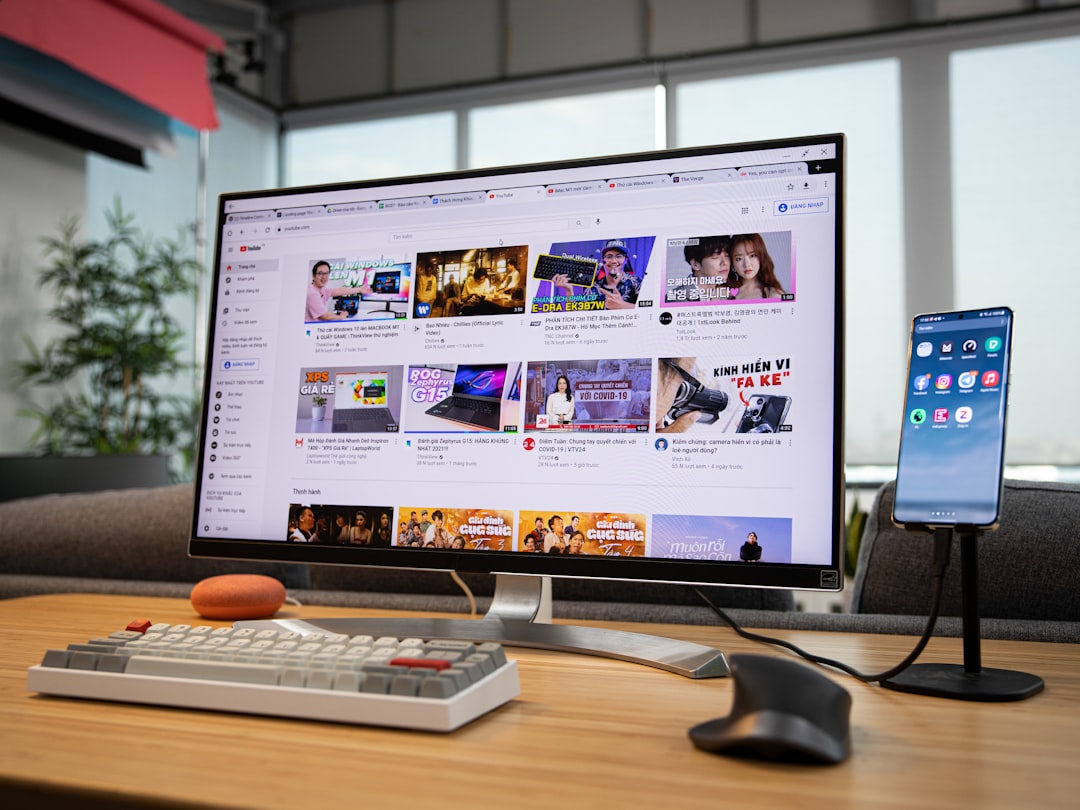
How to Turn Off Restricted Mode on YouTube Desktop
If you are using YouTube in a web browser on a computer, start with the basic toggle. This works if Restricted Mode was enabled manually and is not controlled by an administrator.
- Go to YouTube.com in your browser.
- Sign in to the Google account you normally use.
- Click your profile picture in the top right corner.
- Scroll down and select Restricted Mode.
- Switch Activate Restricted Mode to Off.
- Refresh the page and test a video that was previously blocked.
If you use more than one browser, repeat the process in each one. Restricted Mode settings can behave differently between Chrome, Safari, Firefox, Edge, and private browsing windows, especially if cookies or account sessions are not synced.
How to Turn Off Restricted Mode on the YouTube Mobile App
On iPhone, iPad, and Android devices, the setting is usually inside the YouTube app’s general settings. The exact wording may vary slightly depending on app updates, but the path is generally similar.
- Open the YouTube app.
- Tap your profile picture or account icon.
- Tap Settings.
- Go to General.
- Find Restricted Mode.
- Turn the switch Off.
If the switch is already off but content is still filtered, close the app completely and reopen it. You can also update the app from the App Store or Google Play, because older versions may display settings incorrectly or fail to sync account preferences.
How to Turn Off Restricted Mode on Smart TVs and Streaming Devices
Restricted Mode can also be enabled on YouTube apps for smart TVs, Roku, Apple TV, Fire TV, Chromecast with Google TV, game consoles, and similar devices. Because TV interfaces vary widely, the setting may be harder to find.
- Open the YouTube app on your TV or streaming device.
- Go to the left side menu and select Settings.
- Look for Restricted Mode or Safety Mode.
- Set it to Off.
- If needed, sign out and sign back in with the correct Google account.
If the setting is unavailable, uninstalling and reinstalling the app may help. On some TVs, you may also need to reset the app from the device’s application settings menu.
Why Restricted Mode Is Greyed Out or Locked
The most common complaint is not that users cannot find Restricted Mode—it is that they find it, but cannot change it. If the toggle is greyed out, locked, or says it has been enabled by an administrator, then YouTube is receiving a rule from somewhere else.
Here are the most likely causes:
- School or work account: If you are signed in with a managed Google Workspace account, the administrator may force Restricted Mode.
- Family Link or supervised account: A parent or guardian may control the setting.
- Network restrictions: A school, office, public library, hotel, or café Wi Fi network may enforce YouTube filtering.
- Browser policy: Chrome or another browser may be managed by an organization.
- DNS filtering: Services such as family safe DNS, router parental controls, or security software can force restricted YouTube access.
- Device management: Phones, tablets, laptops, or Chromebooks provided by schools or employers may have administrative profiles installed.
Fix 1: Check Whether Your Account Is Managed
If you are using a school or work Google account, Restricted Mode may be enforced by policy. To test this, sign out of YouTube and sign in with a personal Google account. If Restricted Mode becomes editable, the issue is account based.
You can also check whether Chrome is managed. In Chrome, open the menu and look for a message such as Managed by your organization. If you see it on a school or company device, you probably cannot override the setting yourself. The correct solution is to contact the administrator and ask whether Restricted Mode can be changed for your account or device group.
Fix 2: Review Family Link and Supervised Account Settings
If the YouTube account belongs to a child or teen under supervision, YouTube may apply content restrictions automatically. In 2026, many families use Google Family Link or supervised YouTube experiences to manage what younger users can watch.
If you are the parent or guardian, open the Family Link app and check the child’s content settings. Look for YouTube, YouTube Kids, supervision, content levels, and app permissions. Depending on the child’s age and region, you may be able to adjust YouTube settings, but you may not be able to fully disable all protections.
If you are not the family manager, you will need to ask the parent or guardian to make changes. Trying to bypass family controls can cause account issues and may not work because the restriction is applied at the Google account level.
Fix 3: Switch Networks
One of the quickest troubleshooting steps is to change your internet connection. If Restricted Mode is forced by the network, changing networks can reveal the problem immediately.
- If you are on school or office Wi Fi, try your mobile data connection.
- If you are on public Wi Fi, try a trusted home network.
- If you are at home, restart your router and check its parental control settings.
- If you use a custom DNS service, temporarily switch back to your internet provider’s default DNS or another trusted DNS provider.
If YouTube works normally on mobile data but not on Wi Fi, your network is likely enforcing Restricted Mode. In a school, workplace, or public setting, you may not be able to change that. At home, check your router dashboard for features such as Safe Search, Family Filter, Content Filtering, or YouTube Restricted Mode.
Fix 4: Clear Browser Cache, Cookies, and Site Data
Sometimes YouTube keeps old settings because of cached data or corrupted cookies. This is especially common if you frequently switch between personal, school, and work accounts.
- Open your browser settings.
- Find Privacy or Browsing Data.
- Clear cookies and cached files for YouTube and Google, or clear recent browsing data completely.
- Close and reopen the browser.
- Sign back in and check Restricted Mode again.
You can also test in a private or incognito window. If the setting works in incognito but not in your normal browser window, an extension, cookie, or cached policy may be interfering.
Fix 5: Disable Browser Extensions and Security Software Temporarily
Ad blockers, school safety extensions, antivirus web shields, privacy tools, and content filtering extensions can affect YouTube. Some extensions are designed to block mature content, but others may accidentally trigger restricted behavior.
Temporarily disable extensions one at a time and reload YouTube after each change. Pay special attention to extensions related to security, parental controls, productivity, classroom monitoring, or safe browsing. If you are on a managed browser, you may not be allowed to remove certain extensions.
Fix 6: Update or Reinstall the YouTube App
On mobile devices and TVs, app bugs can make Restricted Mode appear stuck. Update the YouTube app first. If that does not help, uninstall and reinstall it. On Android, you may also clear the app cache from the device settings. On iPhone, deleting and reinstalling the app is usually the simplest reset.
After reinstalling, sign in again and check whether the setting is off. If the setting immediately turns back on, the cause is probably your account, network, or device management—not the app itself.
Fix 7: Check Device Restrictions
Apple Screen Time, Android parental controls, Chromebook policies, Microsoft Family Safety, router apps, and third party device management tools can all influence YouTube access. Look through your device’s restrictions and content settings, especially if the device is shared with children, issued by a school, or configured by an employer.
On iPhone or iPad, check Settings > Screen Time. On Android, check the device’s parental control settings and Google account supervision. On Chromebooks, review whether the device is enrolled in a school or organization. If it is managed, only the administrator can remove certain restrictions.
What If Restricted Mode Keeps Turning Back On?
If Restricted Mode turns back on after you disable it, there is almost always an external rule reapplying it. Make a simple checklist: try a different account, different browser, different device, and different network. The pattern will tell you where the restriction lives.
- Same account, all devices: account supervision or administrator policy.
- Same device, all accounts: device management, app setting, or browser policy.
- Same Wi Fi, all devices: router, DNS, or network filtering.
- Only one browser: cookies, extensions, or browser management.
When You Cannot Turn It Off
In some cases, you simply may not have permission to disable Restricted Mode. Schools, employers, libraries, and parents can enforce it for safety, legal, productivity, or policy reasons. If you believe it is blocking legitimate content you need, the best approach is to request access politely and explain why the video or channel is necessary.
For example, a student might ask a teacher to approve an educational video, while an employee might ask IT to whitelist a training channel. Administrators often have more precise controls than ordinary users, so they may be able to allow specific content without disabling protections everywhere.
Final Thoughts
Turning off Restricted Mode on YouTube in 2026 is easy when you control the account, device, and network: open the YouTube settings and switch it off. The challenge begins when the setting is locked by a parent, administrator, browser policy, DNS service, router, or managed device. Work through the problem logically by testing different accounts, devices, browsers, and networks. Once you identify where the restriction is coming from, you will know whether you can fix it yourself or need help from the person who manages the account, device, or network.