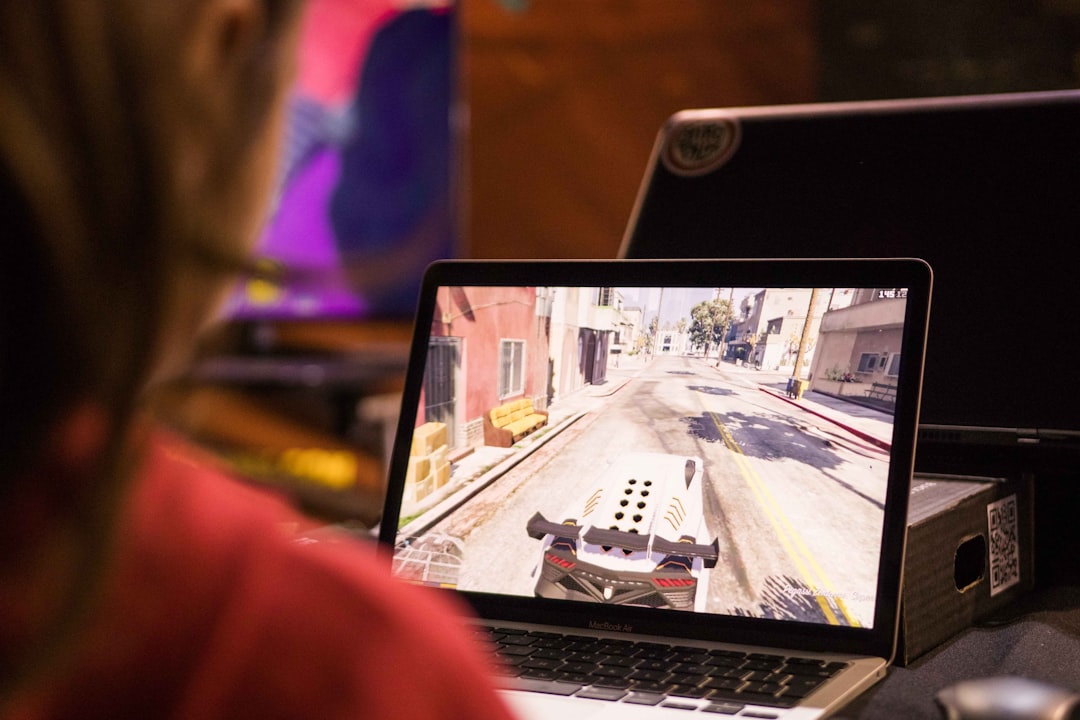
Few errors are as frustrating for PC players and modders as the dreaded GTA 5 “Pool Size” error. It often appears suddenly, especially after installing mods, and can cause crashes during startup or mid-game. While the message may look technical and confusing, it usually points to memory allocation limits being exceeded. The good news is that this issue is both common and fixable with the right approach.
TLDR: The GTA 5 Pool Size error happens when the game exceeds its allocated memory limits, usually due to heavy mod usage. You can fix it by adjusting configuration files like gameconfig.xml, installing memory-related tools such as Heap Adjuster and Packfile Limit Adjuster, or removing conflicting mods. Always back up files before making changes and ensure your mods match your game version. Proper mod management prevents the issue from recurring.
Understanding the GTA 5 Pool Size Error
In simple terms, the “pool size” refers to the amount of memory Grand Theft Auto V allocates for different game assets such as vehicles, pedestrians, textures, and world objects. GTA 5 was originally designed for consoles with fixed memory limits, and the PC port retained many of these constraints.
When you install multiple mods — especially high-resolution vehicle packs, map expansions, or intensive script mods — you increase memory demand. If the allocated memory pool exceeds predefined limits, GTA 5 crashes and displays an error like:
- ERR_MEM_MULTIALLOC_FREE
- Game memory error. Please reboot and restart the game.
- Pool size error
These errors all point to the same underlying cause: insufficient allocated memory for the game’s current configuration.
Main Causes of the Pool Size Error
Before applying fixes, it’s important to understand the root causes. The most common triggers include:
- Too many add-on vehicles
- Large map expansion mods
- Outdated or incompatible gameconfig.xml file
- Missing memory allocation tools
- Conflicting script mods
Identifying which of these applies to your setup will make the solution more effective.
Step 1: Install Essential Memory Adjustment Tools
If you are modding GTA 5, certain tools are not optional — they are essential. These utilities expand the game’s memory handling capacity and prevent crashes.
Required Tools
- HeapAdjuster
- Packfile Limit Adjuster
- Updated gameconfig.xml
- OpenIV (for file management)
These tools modify how GTA 5 handles memory limits without altering core gameplay systems.
How to Install Them
- Download the latest versions from reputable modding websites.
- Extract files to your main GTA 5 directory.
- Replace existing files only after creating backups.
- Ensure compatibility with your exact GTA 5 version.
Important: Always verify that your game version matches the gameconfig.xml file. Mismatched versions are one of the top crash causes.
Tool Comparison Chart
| Tool | Main Function | Required for Modding? | Difficulty Level |
|---|---|---|---|
| HeapAdjuster | Increases heap memory allocation | Yes | Easy |
| Packfile Limit Adjuster | Raises packfile count limit | Yes | Easy |
| gameconfig.xml | Modifies memory pool settings | Yes | Moderate |
| OpenIV | File editing and mod management tool | Yes | Moderate |
Step 2: Update or Replace gameconfig.xml
The gameconfig.xml file directly controls memory pool limits. Installing multiple add-on vehicles without a properly configured gameconfig almost guarantees crashes.
To fix this:
- Download a gameconfig specifically made for your GTA 5 version.
- Open OpenIV and enable edit mode.
- Navigate to mods > update > update.rpf > common > data.
- Replace the existing gameconfig.xml file.
Many high-quality gameconfig files are pre-configured to support hundreds of add-on vehicles. However, installing the wrong version can permanently break your mod setup, so proceed carefully.
Image not found in postmetaStep 3: Reduce Add-On Vehicles and Heavy Mods
If you prefer a simpler solution without additional tools, consider reducing the number of active mods.
High-risk modifications include:
- Ultra HD texture packs
- Realistic graphics overhaul mods
- Large-scale map expansions
- Hundreds of add-on car packs
GTA 5 was not originally built to handle unlimited custom content. Even with memory tools installed, there are practical performance limits depending on your PC’s RAM and GPU.
Best Practice
Instead of installing 200 vehicles at once, add them in smaller batches. Test stability after each installation. This approach helps quickly identify problematic mods.
Step 4: Check ScriptHookV and Script Mods
After every GTA Online update, Rockstar pushes patches that break ScriptHookV temporarily. When ScriptHookV becomes outdated, memory-related crashes become more frequent.
To resolve:
- Download the latest ScriptHookV version.
- Remove outdated script mods.
- Check compatibility notes from mod authors.
Running old scripts alongside newer memory configurations often causes instability that appears as a pool size error.
Step 5: Increase Virtual Memory (Advanced)
If your system has limited RAM (8GB or less), increasing Windows virtual memory can improve stability.
- Open Windows Settings.
- Search for “Advanced system settings.”
- Click Performance > Settings > Advanced.
- Adjust Virtual Memory.
Set a custom size based on your RAM. For example:
- Initial size: 8000 MB
- Maximum size: 16000 MB
This does not replace memory tools but can reduce crash frequency on low-memory systems.

Common Mistakes to Avoid
Many players unintentionally worsen the issue. Avoid the following:
- Installing mods without backups
- Mixing outdated and updated files
- Using cracked or unofficial game versions
- Ignoring mod load order
Maintaining a clean mod folder structure significantly improves long-term stability.
How to Prevent the Pool Size Error in the Future
Prevention is always better than troubleshooting. Follow these professional recommendations:
- Keep a separate clean GTA 5 backup.
- Document every mod you install.
- Update tools immediately after Rockstar patches.
- Test changes incrementally.
Experienced modders treat their GTA 5 directory like a development environment. They test, back up, and document every modification.
When to Start Fresh
If the error persists despite applying all fixes, your installation may be corrupted beyond simple repair. In that case:
- Back up your save files.
- Completely uninstall GTA 5.
- Delete remaining directories manually.
- Reinstall a clean version.
Reinstalling is sometimes faster and more reliable than hunting down deeply embedded conflicts.
Final Thoughts
The GTA 5 Pool Size error is intimidating but rarely permanent. In most cases, it results from exceeding memory boundaries through aggressive modding. By installing proper memory tools, updating gameconfig.xml, managing mods systematically, and keeping ScriptHookV current, you can achieve a stable and highly customized GTA 5 experience.
Modding GTA 5 safely requires discipline. With backups, compatible tools, and structured installation habits, you can eliminate pool size errors permanently and enjoy a powerful, crash-free game environment.