Online advertising is deeply embedded in today’s mobile experience, and Android users often feel the impact more than anyone. From banner ads inside free apps to intrusive pop-ups in mobile browsers, advertisements can interrupt workflows, slow down devices, consume data, and present potential privacy risks. Blocking ads on your Android phone or tablet is not just about convenience; it is also about improving performance, strengthening security, and regaining control over your digital environment.
TLDR: You can block ads on Android by adjusting system settings, using private DNS, installing ad-blocking browsers, configuring network-level blocking, or relying on trusted third-party apps. The most effective solutions involve either private DNS or dedicated ad blockers that filter traffic before ads load. Be cautious when choosing apps and avoid unknown tools that request excessive permissions. Combining smart browsing habits with reliable tools offers the best long-term protection.
Why Blocking Ads on Android Matters
Advertising is not inherently harmful. Many developers rely on ads to fund free apps and services. However, modern ad networks often go beyond simple banner placements. They may include trackers, auto-play videos, redirects, and scripts that consume significant system resources.
The primary reasons users choose to block ads include:
- Improved performance: Ads consume CPU power, memory, and bandwidth.
- Enhanced privacy: Many ads contain tracking scripts that monitor browsing behavior.
- Reduced data usage: Blocking ads decreases background data consumption.
- Better security: Malicious advertisements (malvertising) can lead to scams or malware downloads.
Understanding your options allows you to select a method that balances effectiveness, ease of use, and compatibility with your device.
Method 1: Enable Private DNS (Best Built-In Solution)
Android 9 and newer versions include support for Private DNS, which allows you to block ads system-wide without installing additional applications. This method works by using a DNS service that filters out advertising domains before your phone connects to them.
How to set up Private DNS:
- Open Settings.
- Go to Network & Internet.
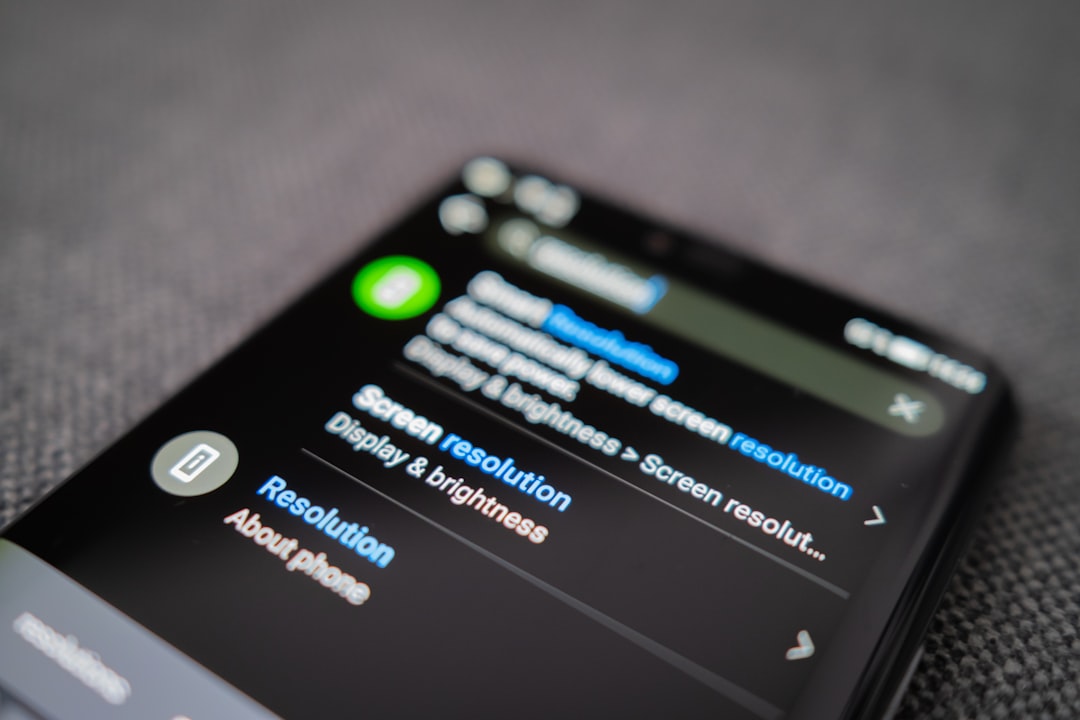
- Select Private DNS.
- Choose Private DNS provider hostname.
- Enter a trusted ad-blocking DNS provider hostname.
- Save your settings.
Once connected, your device will automatically block many ad-serving domains across apps and browsers. This approach has several advantages:
- No need to install extra software.
- Works across most apps.
- Minimal battery impact.
However, it may not block every form of advertisement, especially ads embedded directly inside apps.
Method 2: Use an Ad-Blocking Browser
If you primarily want to block ads while browsing the web, switching to a browser with built-in ad blocking is one of the safest and easiest solutions.
Many modern browsers for Android include:
- Integrated ad and tracker blocking
- Pop-up blocking features
- Protection against malicious sites
Advantages of using an ad-blocking browser:
- Simple to install and configure
- No changes required to system settings
- Improved browsing speed
This method is limited to browsing activities. Ads inside other apps will still appear.
If privacy and tracking are your primary concerns rather than in-app ads, this option may be entirely sufficient.
Method 3: Install a Dedicated Ad-Blocking App
For broader protection, many users install third-party ad-blocking applications. These apps typically create a local VPN on your device, allowing them to filter traffic before it reaches applications.
Important: These apps do not always route your traffic through external servers. Instead, they create a local filtering system on your phone.
When choosing an ad-blocking app:
- Select well-reviewed applications from reputable developers.
- Avoid apps that request unnecessary permissions.
- Carefully read privacy policies.
Pros:
- System-wide ad blocking
- Custom filtering lists
- Optional tracker protection
Cons:
- May conflict with other VPN apps
- Slight battery consumption increase
- Some free versions display limited functionality
Users who rely heavily on mobile apps with aggressive advertising may find this approach the most effective.
Method 4: Adjust System and App Settings
Android also provides built-in options to reduce ad personalization and intrusive app behavior.
Disable ad personalization:
- Open Settings.
- Go to Privacy.
- Select Ads.
- Reset advertising ID or disable ad personalization (if available).
This will not eliminate ads but reduces targeted tracking.
You can also manage app permissions:
- Limit background data usage.
- Disable notifications from ad-heavy apps.
- Revoke unnecessary permissions such as location access.
Sometimes, the simplest solution is uninstalling apps that rely excessively on advertising. Many alternatives exist that provide similar functionality with fewer intrusive ads.
Method 5: Network-Level Ad Blocking
For users with technical confidence, blocking ads at the Wi-Fi router level provides comprehensive coverage for all devices connected to your network.
This method involves:
- Configuring router DNS settings
- Using filtering services
- Setting up advanced DNS-based filtering systems
 home wifi router, network settings screen, laptop configuring dns[/ai-img>
Advantages:
- Blocks ads on phones, tablets, smart TVs, and computers simultaneously
- No app installation required on each device
Limitations:
- Does not work when using mobile data unless paired with device-level DNS
- Requires access to router configuration
This solution is ideal for households seeking centralized control over network traffic.
Google Play Store Ads and Recommendations
While you cannot completely remove promotional content from the Google Play Store, you can reduce unnecessary exposure by:
- Turning off personalized recommendations
- Avoiding accidental app installs from ads
- Reviewing app developers and permissions carefully
Staying attentive to what you install is often more effective than relying solely on blocking technologies.
Security Considerations
It is important to recognize that not all ad blockers are equal. Some poorly designed apps may introduce new privacy concerns or display their own advertisements.
Best practices include:
- Downloading apps only from official app stores.
- Reading independent user reviews.
- Avoiding cracked or modified APK files.
- Keeping your Android system updated.
Never grant accessibility permissions or device administrator rights to unknown applications without verifying their legitimacy.
Balancing Ad Blocking With App Support
Blocking ads entirely may unintentionally affect smaller developers who depend on advertising for revenue. If you frequently use and value a particular app, consider supporting it through:
- Purchasing an ad-free premium version.
- Making in-app purchases.
- Leaving positive reviews.
This balanced approach helps maintain a sustainable app ecosystem while still prioritizing your privacy and user experience.
Final Recommendations
For most Android users, enabling Private DNS provides the most effective and simplest method for system-wide ad blocking. Pairing this with a privacy-focused browser ensures strong protection during web browsing. Advanced users may benefit from combining DNS filtering with a reliable third-party ad blocker for enhanced control.
Blocking ads on Android is ultimately about choosing the level of control that matches your comfort with technical adjustments. Whether you opt for built-in settings or advanced network configurations, the key is selecting trustworthy solutions and maintaining good digital hygiene.
By implementing these strategies, you can significantly reduce intrusive advertisements, protect your personal data, and create a faster, cleaner mobile experience on your Android phone or tablet.